Last updated · 2 min read
How to convert JPG images to a PDF (one page per image)
Phone photos of receipts, ID documents or handwritten notes are much easier to send as one tidy PDF than as a pile of images. Converting them takes a minute, and you can choose standard paper sizes so the result prints well.
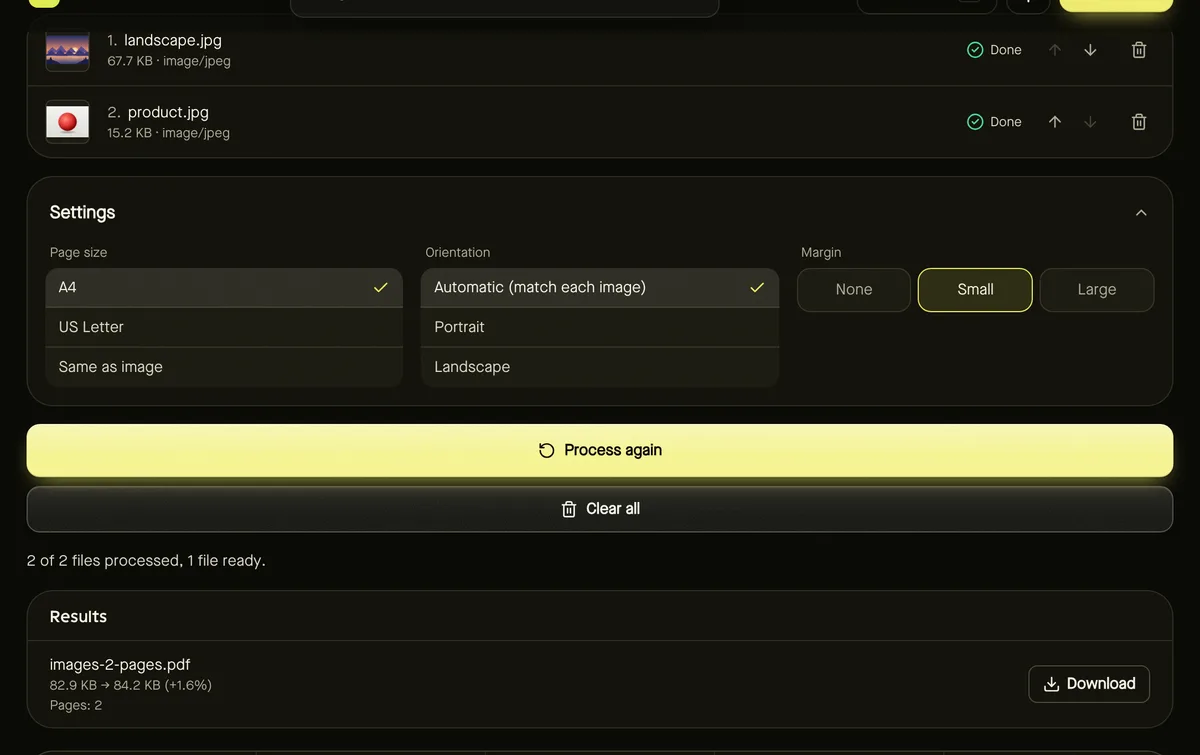
Create a PDF from images
- Step 1: Open JPG to PDF and add JPG, PNG or WebP images — up to 100.
- Step 2: Arrange them with the arrow buttons; each image becomes one page, top to bottom.
- Step 3: Choose Page size: A4, US Letter, or Same as image.
- Step 4: Choose Orientation (Automatic matches each image) and a Margin.
- Step 5: Click Start and download the PDF.
Which page size to choose
| Option | Best for |
|---|---|
| A4 | Printing and official documents in most countries |
| US Letter | Printing in the US and Canada |
| Same as image | Screen viewing; each page matches its photo exactly |
With A4 or Letter, each image is scaled to fit inside the margins and centred, without cropping or stretching. Automatic orientation puts wide photos on landscape pages and tall ones on portrait pages.
Image quality in the PDF
JPG and PNG images are embedded exactly as they are, without re-compression. Photos with a rotation tag are turned upright first, and WebP images are converted so every PDF viewer can show them.
Next steps
- Combine with other documents using Merge PDF.
- Make it smaller with Compress PDF.
- Going the other way? See how to convert PDF pages to JPG.
Tips for scanning documents with your phone
- Photograph pages flat, from directly above, in good even light — shadows and angles show up in the PDF.
- Fill the frame with the page, or crop the edges away before converting.
- Check that each photo is upright; sideways photos with a rotation tag are fixed automatically, but others can be turned with Rotate image.
- Use A4 or US Letter if the recipient may print the document.
Frequently asked questions
Can I put several images on one page?
Not yet — each image becomes its own page. For several photos in one image, make a collage first, then convert it.
Which image formats work?
JPG, PNG and WebP. Convert HEIC photos to JPG first.
Are my images uploaded?
No. The PDF is created in your browser.