Last updated · 2 min read
How to merge PDF files into one document
Applications, reports and invoices often arrive as several separate PDFs when you need just one. Merging them keeps everything together, in the right order, so it's easier to send, print and archive.
Merge PDFs step by step
- Step 1: Open Merge PDF.
- Step 2: Add two or more PDF files — up to 50, each up to 100 MB.
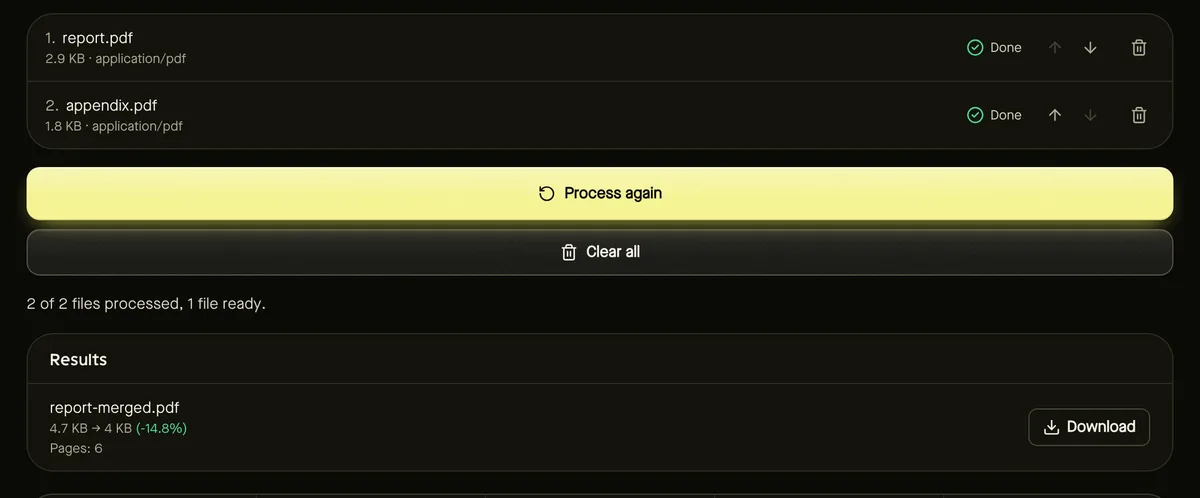
- Step 3: Put them in order with the up and down arrows next to each file. Files are merged from top to bottom.
- Step 4: Click Start and download the merged PDF.
What the merged PDF keeps
- Every page from every file, in the order you set.
- Each page's own size and rotation — mixing A4 and Letter pages is fine.
- Text and images exactly as they were; nothing is re-encoded.
The result is checked to be a valid PDF with the expected number of pages before you can download it.
After merging
- Remove or reorder individual pages with Organize PDF pages.
- Add consistent page numbers across the combined document.
- If it's too large to send, compress it.
Protected or damaged files
Password-protected PDFs can't be merged without first removing the protection in a PDF app you trust. Damaged files are reported by name, so you know exactly which one to replace.
Merging images too
Have photos or scans as JPG or PNG? Turn them into a PDF first with JPG to PDF, then merge it with your other documents.
Getting the order right
- Applications: cover letter first, then CV, then certificates or supporting documents in the order they're mentioned.
- Expense claims: the claim form, then receipts in date order.
- Reports: title page, main document, then appendices.
The list of files shows each name with its position, so check it from top to bottom before clicking Start. If a single page ends up in the wrong place after merging, you don't have to start over — fix it with Organize PDF pages.
Frequently asked questions
Is there a limit on the number of files?
Up to 50 PDFs per merge, each up to 100 MB. Very large merges depend on your device's memory.
Does merging reduce quality?
No. Pages are copied as they are, without re-encoding text or images.
Are my PDFs uploaded?
No. Merging happens in your browser.