Last updated · 2 min read
How to convert PDF pages to JPG images
Turning PDF pages into images is handy for posting a page on social media, adding a document preview to a website, or dropping a page into a presentation. The main decision is resolution: too low looks blurry, too high creates huge files.
Convert PDF pages to JPG
- Step 1: Open PDF to JPG and add your PDF.
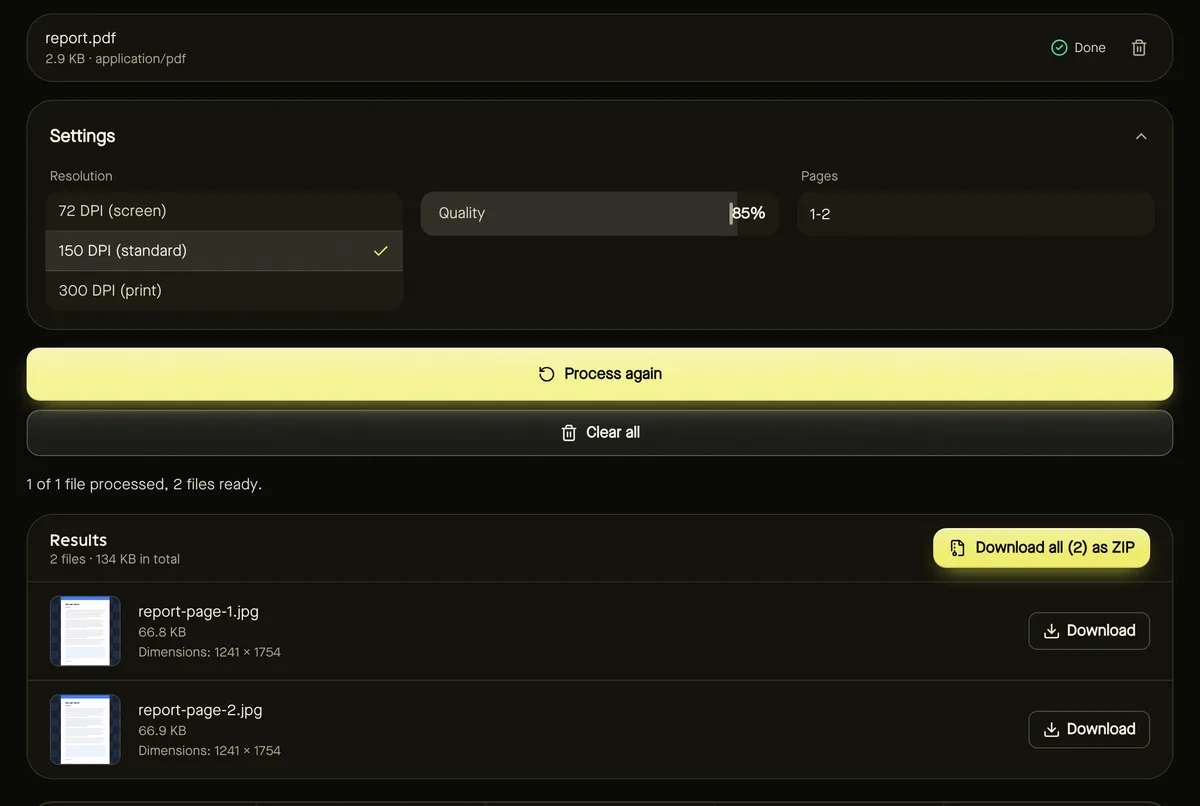
- Step 2: Choose a Resolution: 72, 150 or 300 DPI.
- Step 3: Optionally enter Pages, such as 1-3, 5 — leave it empty for every page.
- Step 4: Click Start. Progress shows page by page.
- Step 5: Download each image, or all pages as a ZIP.
Which resolution?
| DPI | A4 page in pixels | Best for |
|---|---|---|
| 72 | about 595 × 842 | Small previews and thumbnails |
| 150 | about 1240 × 1755 | Screens, slides and social media |
| 300 | about 2480 × 3508 | Printing and zooming into detail |
Higher DPI means sharper text but much bigger files. 150 DPI is a good default for anything viewed on a screen.
How pages are rendered
Pages are drawn by pdf.js, the open-source PDF engine used in Firefox, so fonts, vector graphics and images appear as they would in a PDF viewer. Pages are rendered on a white background.
Password-protected PDFs
If a PDF needs a password to open, you'll be asked to remove the password in a PDF app you trust first. The tool doesn't bypass document protection.
Common uses
- Social media: post one page of a report or a poster at 150 DPI.
- Presentations: insert a page as an image when the slide app can't embed PDFs.
- Website previews: show the first page of a downloadable document — export page 1 at 72 or 150 DPI.
- Print-quality copies: export at 300 DPI when detail matters, such as diagrams or small print.
When several pages are exported, each image is numbered after its page, so the order is kept when you download them as a ZIP.
Frequently asked questions
Can I convert just one page?
Yes — type its number in the Pages box, for example 4.
Can I get PNG instead of JPG?
The tool exports JPG. Use Convert image afterwards if you need PNG or WebP.
Is my PDF uploaded?
No. Pages are rendered in your browser.