Last updated · 2 min read
Lossy vs lossless compression: what's the difference?
Every image, PDF, song and video you share is compressed — it's the only reason files are small enough to send. But there are two very different kinds of compression, and knowing which one you're using explains why some files shrink dramatically and others barely change.
Lossless: smaller, but identical
Lossless compression finds patterns and stores them more efficiently, like writing “100 × blue” instead of “blue, blue, blue…”. When the file is opened, every pixel or sample comes back exactly as it was.
- Formats: PNG, lossless WebP, FLAC and WAV (uncompressed) audio, ZIP archives.
- Great for: screenshots, logos, text, line art, and anything you'll edit repeatedly.
- Limitation: photos and natural sound have few exact patterns, so savings are modest.
Lossy: much smaller, slightly different
Lossy compression throws away detail people are unlikely to notice — subtle colour variation in a photo, or very quiet sounds masked by loud ones. The result can be a tenth of the size, and at sensible settings it looks or sounds the same.
- Formats: JPG, lossy WebP, AVIF, MP3, AAC, Opus, and video codecs like H.264 and VP9.
- Great for: photos, music, video — anything natural and detailed.
- Limitation: the discarded detail is gone for good, and re-saving repeatedly adds more loss.
Which to choose
| Content | Best choice | Why |
|---|---|---|
| Photos | JPG or WebP (lossy) | Much smaller with no visible difference |
| Screenshots, logos, text | PNG (lossless) | Keeps sharp edges and flat colours clean |
| Images with transparency | PNG or WebP | JPG has no transparency |
| Music for listening | MP3 or AAC | Tiny compared with WAV |
| Audio for editing | WAV or FLAC | No generation loss |
See image formats explained for a fuller comparison.
Quality settings in practice
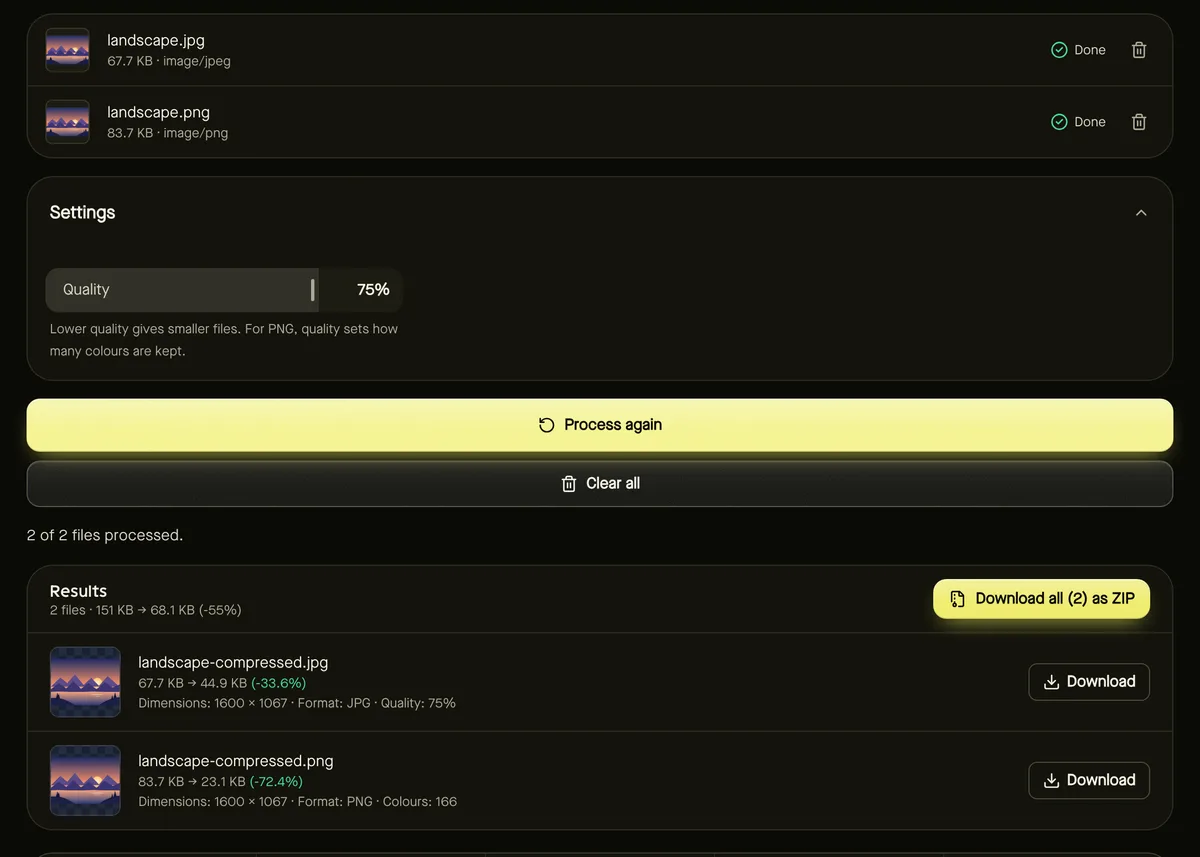
In Compress image, the quality slider controls how much JPG and WebP detail is discarded: around 75% is a good default, 85–90% for images where detail matters. For PNG, which is lossless, the tool instead reduces the number of colours — very effective for graphics, much less for photos.
Why some files won't shrink
A JPG that's already compressed, or an MP4 from a phone, has little redundancy left. Zipping it saves almost nothing, and re-compressing at a higher quality can even make it bigger — which is why our tools hand back your original if the new file wouldn't be smaller.
Frequently asked questions
Is converting JPG to PNG lossless?
The conversion itself loses nothing, but it can't restore what the JPG already lost — and the file gets bigger.
Can I compress a file without any quality loss?
Yes, with lossless methods, but the savings for photos and video are small. Large savings always involve some loss.
Which quality setting should I use?
Start at 75% for photos, compare the preview, and raise it if you see blockiness or smudged detail.