Last updated · 2 min read
How to reduce a photo to 100 KB, 50 KB or 20 KB
Job portals, exam registrations and government forms often reject photos above a fixed size — 100 KB, 50 KB or even 20 KB. Guessing a quality setting and trying again is tedious. This guide shows how to hit a target size in one go, explains why some targets are unreachable without making the image smaller, and covers the KB maths that trips people up.
How to reach a target size
- Step 1: Open Reduce image size in KB.
- Step 2: Add your JPG or WebP photo (up to 25 MB; up to 50 files at once).
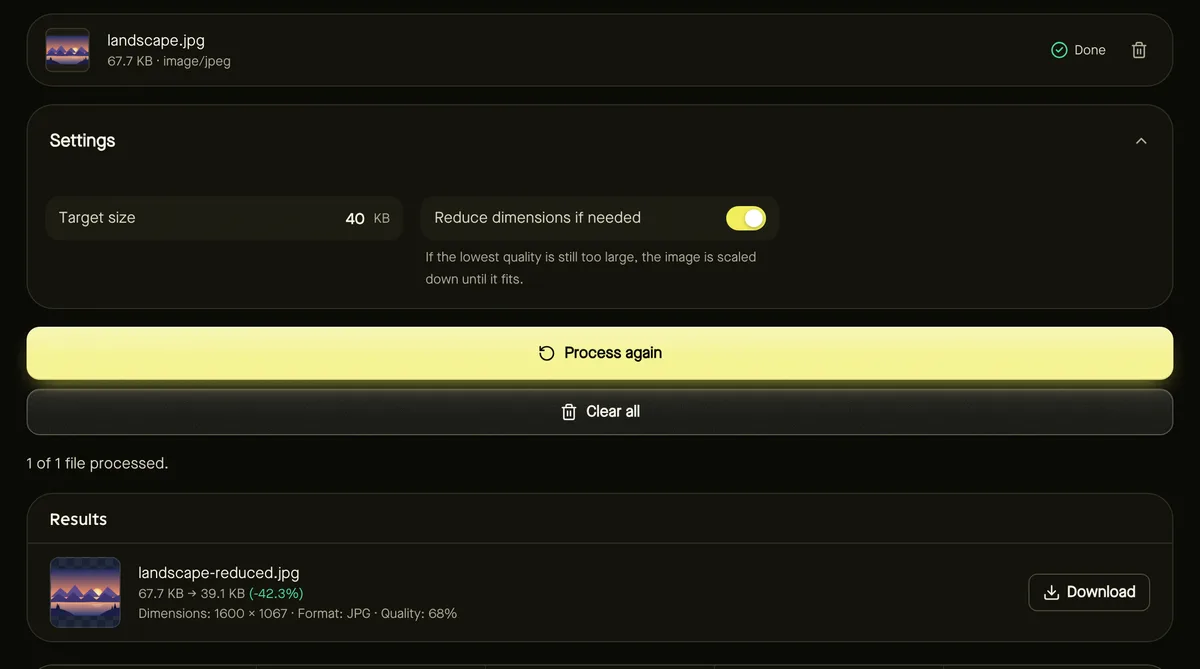
- Step 3: Enter the Target size in KB, for example 100.
- Step 4: Leave Reduce dimensions if needed switched on unless the form also requires exact pixel dimensions.
- Step 5: Click Start. The result shows the size actually achieved — always at or under your target.
Behind the scenes the tool tries different quality levels and keeps the highest one that fits, so you get the best-looking photo that meets the limit rather than an over-compressed one.
When the target is too small
Every image has a floor: even at the lowest quality, a large photo with lots of detail takes up a certain amount of space. If that floor is above your target, there are two honest options:
- Allow resizing. With the option on, the tool scales the photo down step by step until it fits. A 4000-pixel phone photo is far bigger than any form needs, so this usually looks fine.
- Raise the target. If you switch resizing off and the target can't be met, you'll see a clear message with the smallest size that was possible, instead of a file that quietly breaks the rule.
How KB is counted
There are two conventions: 1 KB = 1,024 bytes (used by Windows and many upload forms) and 1 KB = 1,000 bytes. This tool uses 1,024 bytes, which is the stricter of the two for limits, so a file it calls 100 KB is accepted by forms using either convention.
| Target | Maximum bytes | Typical use |
|---|---|---|
| 20 KB | 20,480 | Signature scans and tiny ID photos |
| 50 KB | 51,200 | Exam and registration photos |
| 100 KB | 102,400 | Job portals and profile pictures |
| 200 KB | 204,800 | Document photos and listings |
Tips for better-looking small photos
- Crop out empty background first so the bytes are spent on the subject.
- Plain, evenly lit backgrounds compress much better than busy ones.
- Start from the original photo, not one that has already been compressed by a messaging app.
- If your photo is already under the target, the tool keeps it unchanged and tells you — no need to re-encode.
Frequently asked questions
Which formats are supported?
JPG and WebP, which both support adjustable quality. Convert PNG or HEIC photos to JPG first if a form needs a small file.
Will the photo still be accepted if it's slightly under the target?
Yes. Limits are maximums, so a 97 KB file meets a 100 KB limit.
Is my photo uploaded?
No. Everything happens in your browser, and the photo never leaves your device.