Last updated · 2 min read
JPG, PNG, WebP, HEIC or AVIF? Image formats explained
Every image format makes trade-offs between file size, quality, transparency and compatibility. Picking the right one can halve your file sizes or save a logo from ugly edges. Here's what each common format is for, and how to convert between them.
The formats at a glance
| Format | Compression | Transparency | Best for |
|---|---|---|---|
| JPG | Lossy | No | Photos that need to open anywhere |
| PNG | Lossless | Yes | Screenshots, logos, graphics, editing |
| WebP | Lossy or lossless | Yes | Websites — usually smaller than JPG or PNG |
| HEIC | Lossy | Yes | iPhone photos — small, but not opened everywhere |
| AVIF | Lossy or lossless | Yes | Modern websites — very small files |
Lossy vs lossless
Lossy formats discard detail that's hard to see, which makes photos much smaller. Each time you save a lossy file again, a bit more is lost. Lossless formats keep every pixel exactly, so they're ideal for editing and for graphics with sharp edges, but photos stored losslessly are large.
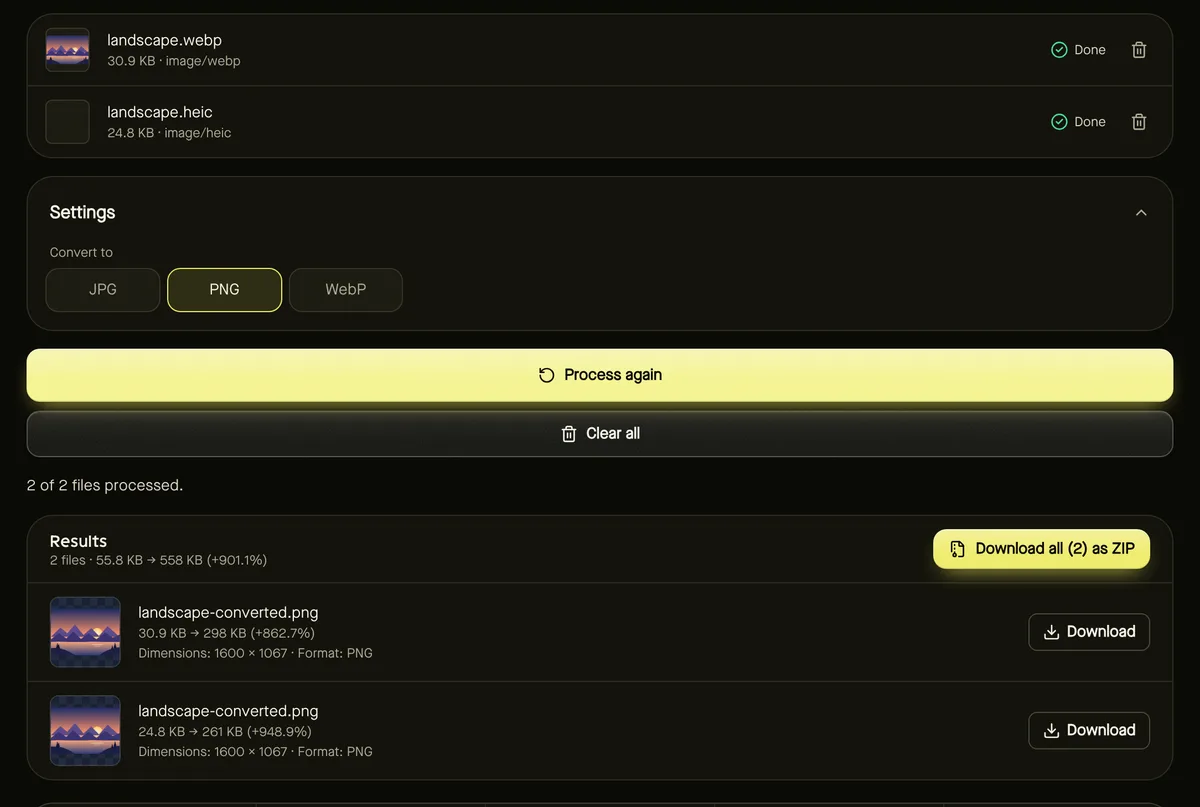
Converting a lossy file to a lossless one (JPG to PNG, for example) doesn't bring back lost detail — it just stops further losses. See how to convert JPG to PNG.
Convert between formats
- Step 1: Open Convert image and add JPG, PNG, WebP, HEIC or AVIF files.
- Step 2: Choose Convert to: JPG, PNG or WebP.
- Step 3: For JPG and WebP, set the quality; for JPG, choose a background colour for any transparent areas.
- Step 4: Click Start and download the converted files.
There are also single-purpose converters with sensible defaults: WebP to JPG, PNG to JPG, JPG to PNG, Convert to WebP, HEIC to JPG and AVIF to JPG.
What happens to transparency
PNG and WebP keep transparent areas when you convert between them. JPG has no transparency at all, so converting a transparent image to JPG fills those areas with a solid colour — white by default, or any colour you choose. If you need a cut-out on a coloured background, that's exactly the setting to use.
Which format should you choose?
- Sending to anyone, anywhere: JPG for photos, PNG for screenshots.
- Your own website: WebP for nearly everything; it's supported by all current browsers.
- Editing or archiving graphics: PNG.
- Received HEIC or AVIF that won't open: convert to JPG.
Frequently asked questions
Which format gives the smallest files?
For photos, AVIF and WebP are typically smallest, then HEIC and JPG. PNG is largest for photos but often smallest for simple graphics.
Can I convert to HEIC or AVIF?
Not yet — browsers can't reliably create these formats. You can convert from them to JPG, PNG or WebP.
Are my images uploaded for conversion?
No. Conversion runs in your browser.