Last updated · 2 min read
How to scan documents to PDF with your phone
You don't need a scanner to send a signed form, receipts or a multi-page letter as a PDF. Your phone's camera plus a few browser tools produce a tidy document that's easy to email and print.
Photograph each page well
- Lay the page flat on a dark, contrasting surface.
- Use bright, even light and avoid your own shadow — standing with the light behind the phone helps.
- Hold the phone directly above the page, parallel to it, so the text isn't skewed.
- Take one photo per page and check it's sharp before moving on.
Tidy up the photos
Trim the table around each page with Crop image, and fix any sideways photos with Rotate image. Phone photos taken from iPhones may be HEIC — convert them to JPG first.
Combine the pages into a PDF
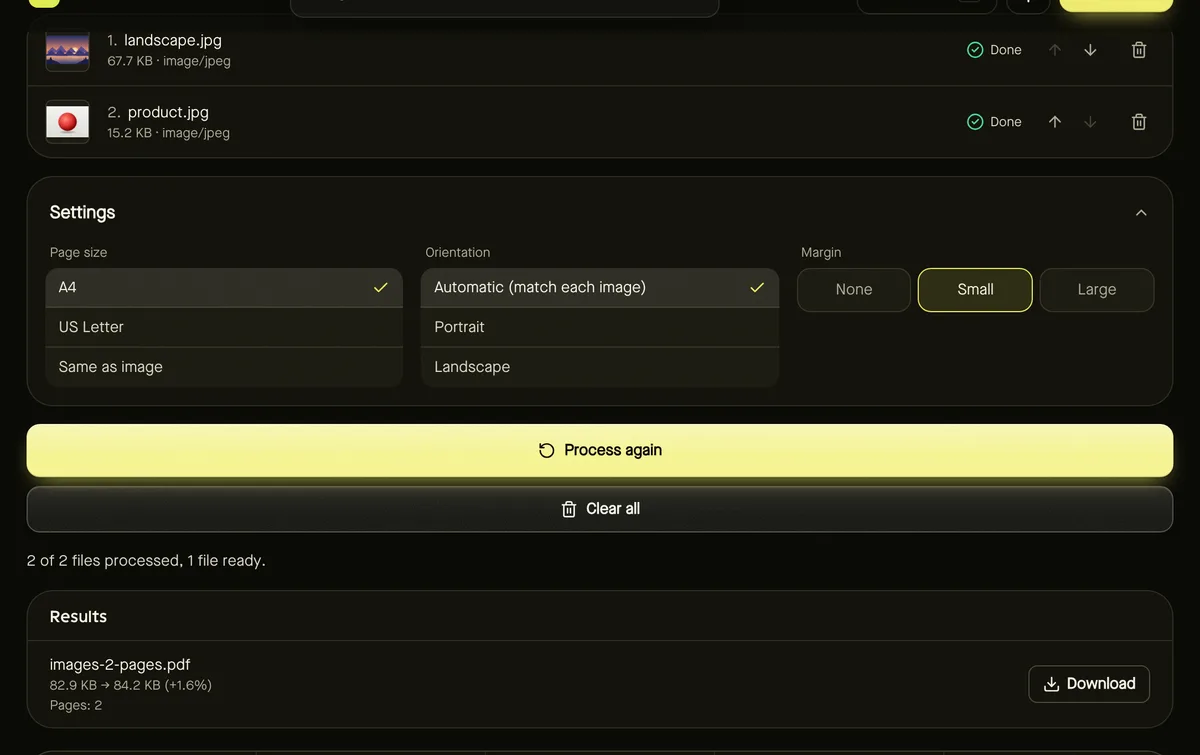
- Step 1: Open JPG to PDF and add all page photos.
- Step 2: Arrange them in page order with the arrow buttons.
- Step 3: Choose A4 or US Letter so the document prints at a normal size, and a small margin.
- Step 4: Click Start and download the PDF.
Make it small enough to send
Phone photos are large, so a 10-page scan can be tens of megabytes. Run the PDF through Compress PDF — Balanced usually keeps text readable while shrinking the file substantially. Alternatively, resize the photos to about 2000 pixels on the long side before converting.
Finishing touches
- Forgot a page or got the order wrong? Fix it with Organize PDF pages.
- Add page numbers to long documents.
- Combine with other PDFs using Merge PDF.
Frequently asked questions
Will the text in my scan be searchable?
No — the pages are photos. Searchable text needs OCR (text recognition), which these tools don't perform.
Why does my scan look grey or yellow?
Indoor lighting tints white paper. Shoot near daylight, avoid shadows and fill the frame with the page; a brighter, evenly lit photo gives a cleaner PDF.
Can I scan a two-sided document?
Yes. Photograph front and back as separate pages and arrange them in order before converting.
Are my documents uploaded?
No. Every step happens in your browser — useful for IDs and financial paperwork.