Last updated · 2 min read
How to resize a photo and signature for online application forms
Online applications for exams, jobs, visas and government services often reject uploads with messages like “file size must be between 20 KB and 50 KB” or “dimensions must be 200 × 230 pixels”. The rules look fussy, but meeting them takes three quick steps: crop, resize, then compress to the size limit.
Read the requirements first
Every form is different, so note the exact rules before you start. They usually cover four things:
- File type — most often JPG or JPEG.
- File size — a range in KB, for example 20–50 KB for a photo and 10–20 KB for a signature.
- Dimensions — width × height in pixels, for example 200 × 230.
- Content — background colour, face size, signature ink colour and so on.
Step 1: Crop to the right shape
If the form specifies dimensions, the photo must have the same shape (aspect ratio) or it will be squashed. Open Crop image, choose a preset if one matches, or use Free and adjust the box so your head and shoulders are centred. For signatures, crop tightly around the signature, leaving a small margin of white paper.
Step 2: Resize to exact pixels
- Step 1: Open Resize image and add the cropped image.
- Step 2: Enter the width and height from the form, for example 200 and 230.
- Step 3: Set Fit to Exact size (crop to fill) so the result is exactly that size without stretching.
- Step 4: Click Start and download.
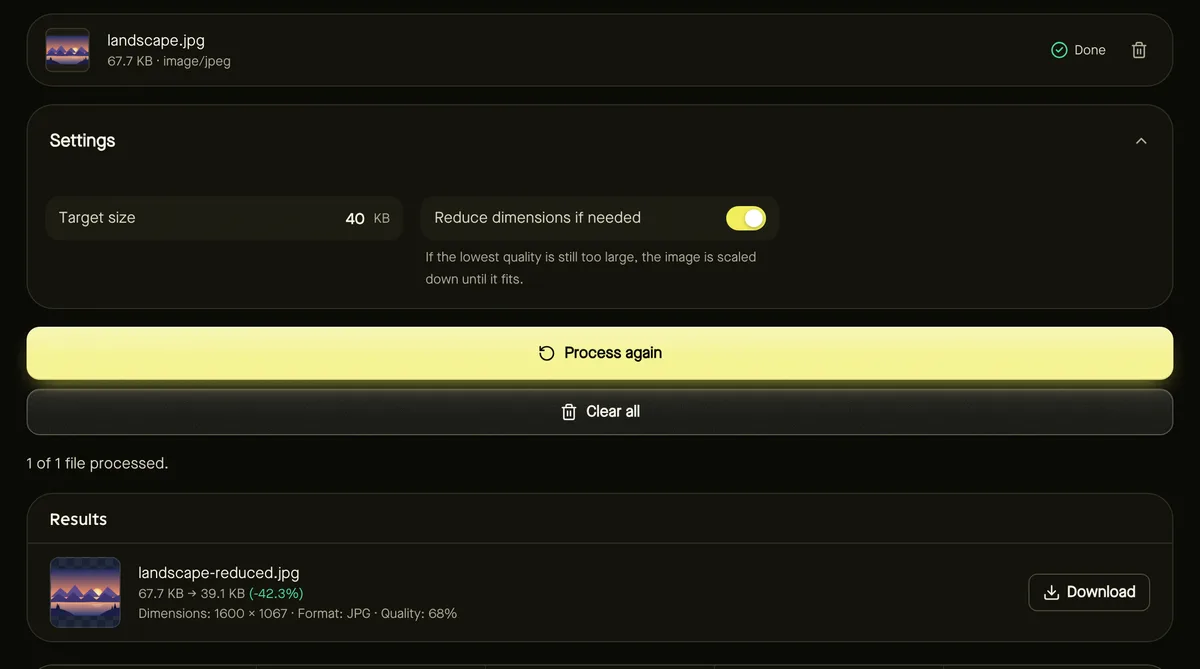
Step 3: Compress to the KB limit
- Step 1: Open Reduce image size in KB and add the resized JPG.
- Step 2: Enter a Target size a little below the maximum — for a 20–50 KB limit, try 45 KB.
- Step 3: Click Start. The result shows the size actually achieved.
If the form also sets a minimum size and your file is too small, compress less — set a higher target, or skip this step. A small image at high quality is often already under the limit.
Common rejection reasons
- Wrong format: a PNG or HEIC renamed to .jpg is still not a JPG. Convert it properly — see HEIC to JPG.
- Too large: lower the target size a few KB below the limit to allow for rounding.
- Sideways photo: phones store rotation separately; rotate it so it's upright.
- Blurry signature: photograph it on white paper in good light, and crop before resizing rather than after.
Frequently asked questions
Does 50 KB mean 50,000 or 51,200 bytes?
The tool uses 1 KB = 1,024 bytes, as most computers display. Aim slightly under the limit to be safe either way.
The form asks for a DPI value — what should I do?
What matters for upload checks is almost always the pixel dimensions and file size. See our guide to DPI for details.
Are my documents uploaded to this site?
No. Cropping, resizing and compressing all happen in your browser.