Last updated · 2 min read
How to make a YouTube thumbnail at the right size
Your thumbnail is the first thing viewers judge, often at the size of a postage stamp. A good one is the right shape, sharp, and readable at a glance. You can make one from any photo or screenshot in a few minutes.
The size to aim for
YouTube's help pages currently recommend thumbnails of 1280 × 720 pixels (a 16:9 ratio), in JPG, PNG or GIF, and under 2 MB. Requirements can change, so check YouTube Studio's upload screen if your file is refused.
Make the thumbnail step by step
- Step 1: Start from a sharp photo or a screenshot of a frame from your video.
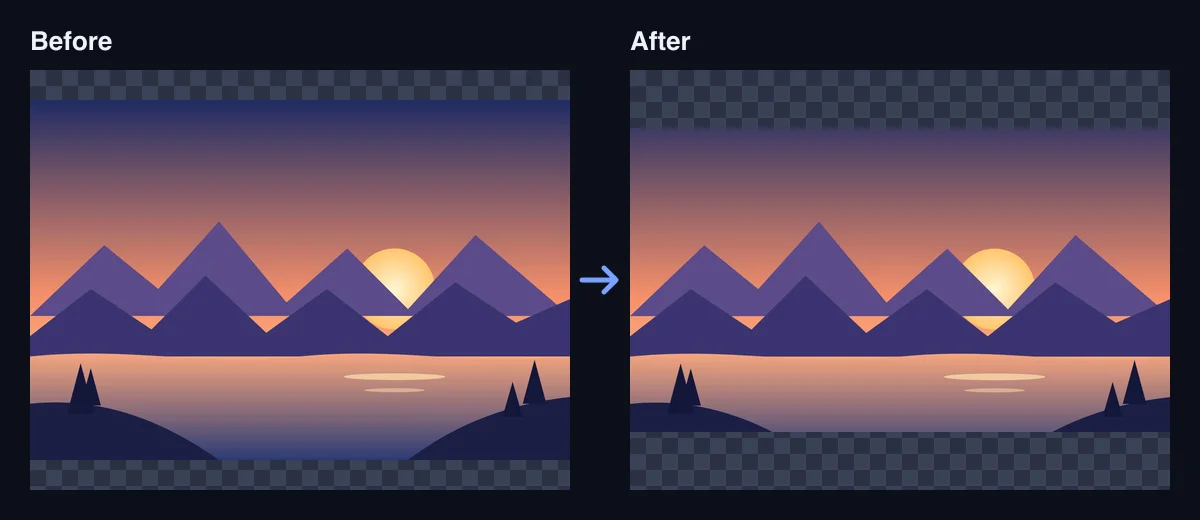
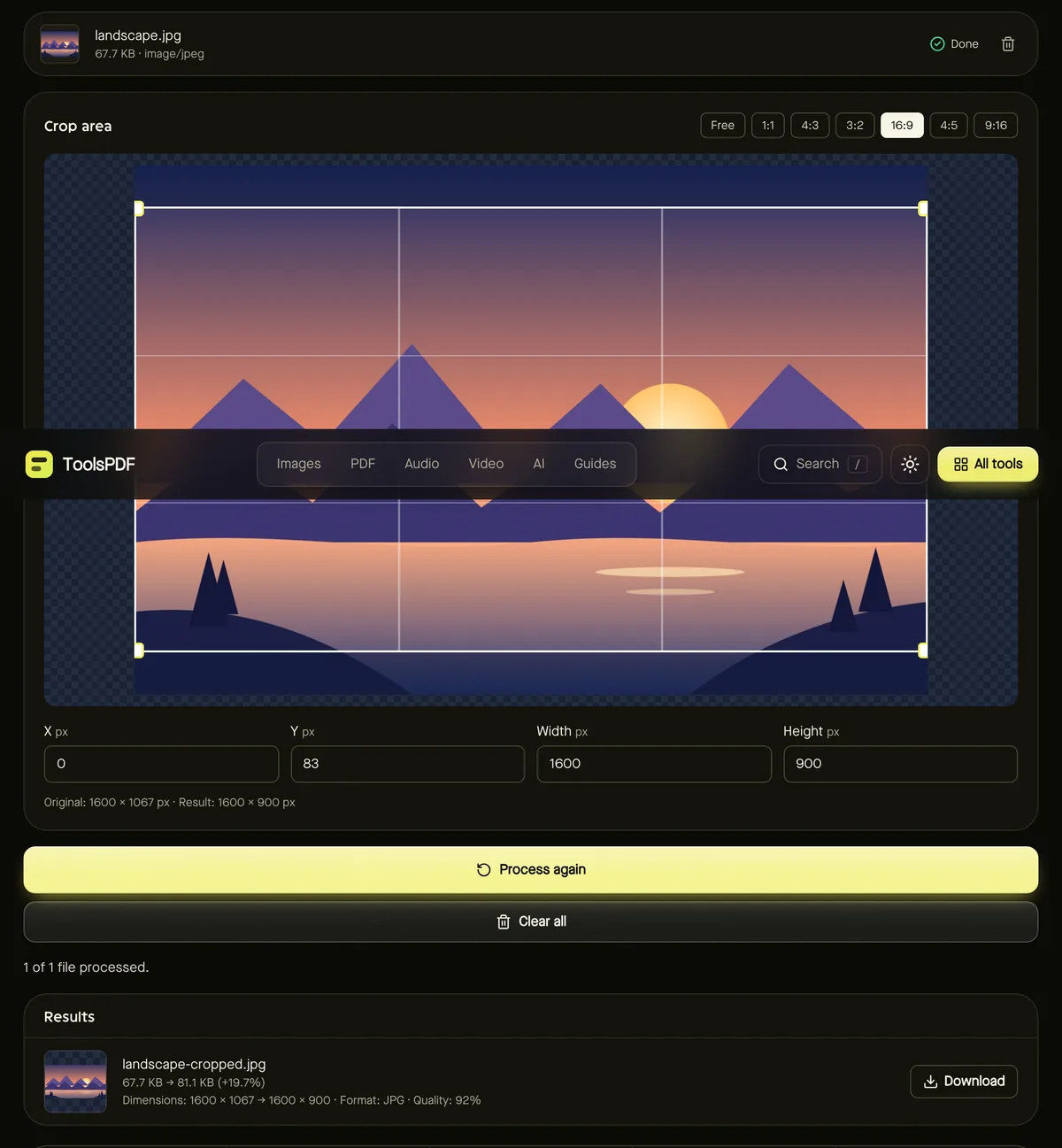
- Step 2: Open Crop image, choose the 16:9 preset, and frame the subject — faces and key objects work best large and off-centre.
- Step 3: Open Resize image, enter 1280 × 720, and set Fit to Exact size (crop to fill).
- Step 4: Optionally add bold top or bottom text with the Meme generator.
- Step 5: If the file is over 2 MB, compress it or save it as JPG.
Design tips that get clicks
- Check it small. Shrink your browser window: if you can't tell what it is at phone size, simplify.
- Use few words. Three to five big words beat a sentence.
- High contrast. Bright subject, plain or darker background; white text with a dark outline stays readable.
- Faces and emotion. Close-ups of expressive faces attract attention.
- Be consistent. A recurring style helps subscribers recognise your videos.
Be honest
Thumbnails that promise something the video doesn't deliver cause viewers to leave quickly, which hurts more than it helps. Show what the video is really about, and only use images you have the right to use.
Turning a clip into a GIF
For community posts or social media teasers, a short looping clip can work alongside your thumbnail — see how to make a GIF from a video.
Frequently asked questions
Why does my thumbnail look blurry?
The source image was probably smaller than 1280 × 720 and got enlarged. Start from a larger image or upscale it first.
Can I use a frame from my video?
Yes. Pause on a sharp frame, take a screenshot, then crop and resize it as above.
Is my image uploaded here?
No. Cropping, resizing and captions are done in your browser.