Last updated · 2 min read
How to resize many photos at once (and download them as a ZIP)
Resizing photos one at a time is fine for two or three images. For an online shop catalogue, an event gallery or a holiday album, it's hours of repetition. A bulk resizer applies one set of rules to every file and hands back a single ZIP — this guide shows how to set that up so the results are consistent.
Resize a batch step by step
- Step 1: Open the Bulk image resizer.
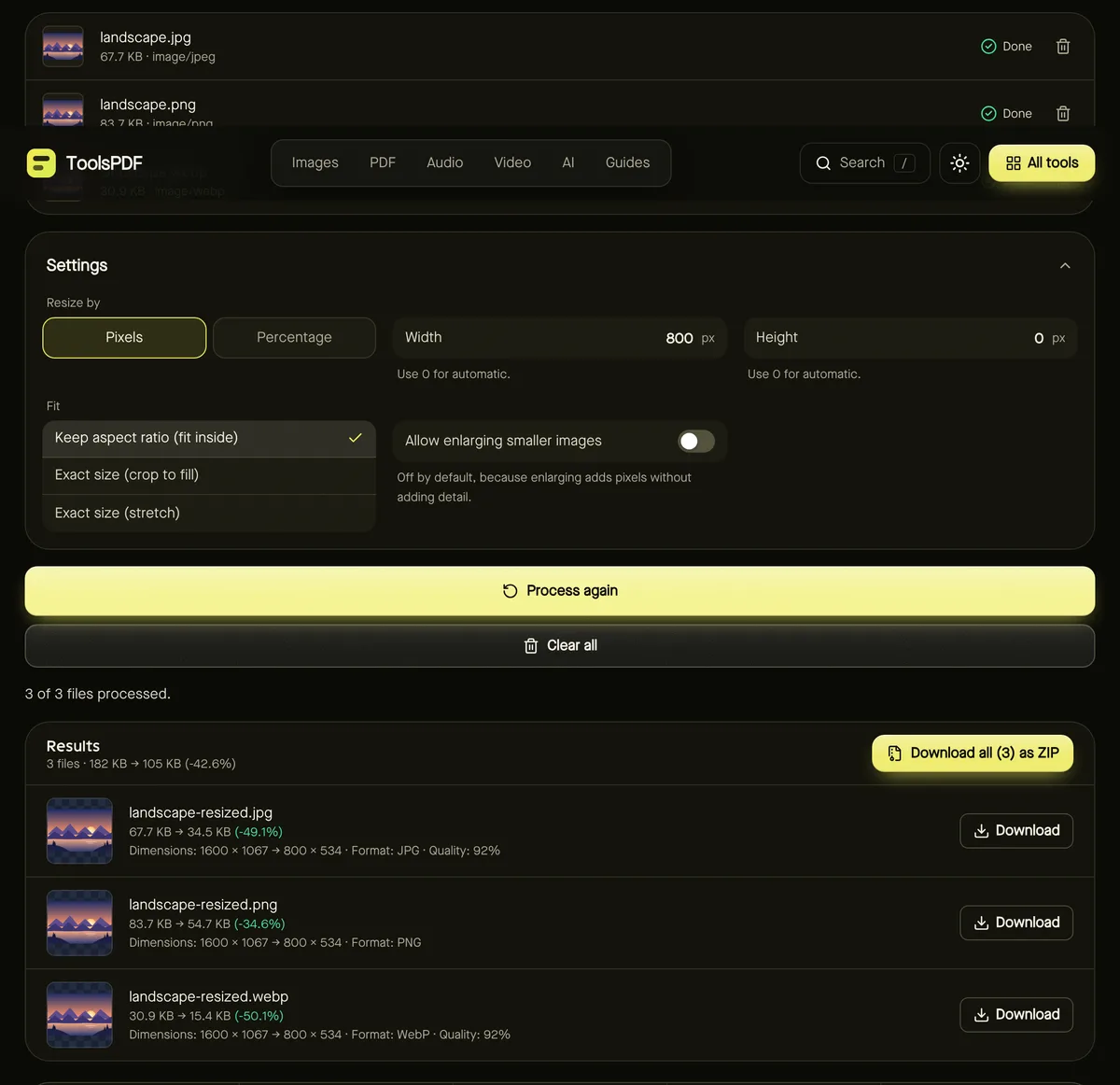
- Step 2: Select up to 100 JPG, PNG or WebP files (up to 25 MB each). You can drag in a selection straight from your file manager.
- Step 3: Choose the size: a maximum width such as 1600 pixels works for most web use.
- Step 4: Click Start. Each file gets its own status, so you can see progress and any problems.
- Step 5: Click Download all as ZIP, or download individual images.
Picking settings that suit every photo
Batches usually mix landscape and portrait shots. The safest setting is Keep aspect ratio (fit inside) with a box such as 1600 × 1600: landscape photos become 1600 wide, portrait photos 1600 tall, and nothing is cropped or distorted.
If every image must be exactly the same size — square product tiles, for example — choose Exact size (crop to fill). Each photo is trimmed evenly from the edges, so check that subjects are reasonably centred.
What happens to failed files
Each file is processed separately. If one is damaged or isn't really an image, it's marked as failed with the reason, and the rest carry on. The ZIP contains only the files that succeeded, so you never get a broken image in your download without knowing.
Files that are obviously wrong — a text file renamed to .jpg, for instance — are caught as soon as you add them, before processing starts.
Name clashes and formats in the ZIP
- Each resized file keeps its format and gets “-resized” added to its name.
- If two outputs would have the same name, the ZIP numbers them, for example “photo-resized (2).jpg”, so nothing is overwritten.
- Images are stored in the ZIP without extra compression, because they're already compressed — it's fast and loses nothing.
Make the batch even smaller
After resizing, run the batch through Compress image to cut file sizes further, or convert to WebP for websites. Doing resize first means compression works on fewer pixels, which is faster and saves more.
Frequently asked questions
Is there a limit to the number of photos?
Up to 100 per batch, each up to 25 MB. For more, run several batches.
Does it work on a phone?
Yes, though large batches use a lot of memory. On older phones, smaller batches of 20–30 photos are more reliable.
Are my photos uploaded?
No. All resizing happens in your browser.