Last updated · 2 min read
How to reorder, rotate and delete pages in a PDF
Scanners feed pages upside down, double-sided scans come out in the wrong order, and documents arrive with blank or unnecessary pages. Rather than scanning again, you can fix the PDF directly by moving, rotating and removing pages while you look at each one.
Organize a PDF with page previews
- Step 1: Open Organize PDF pages and add your PDF.
- Step 2: Wait for the page previews to appear.
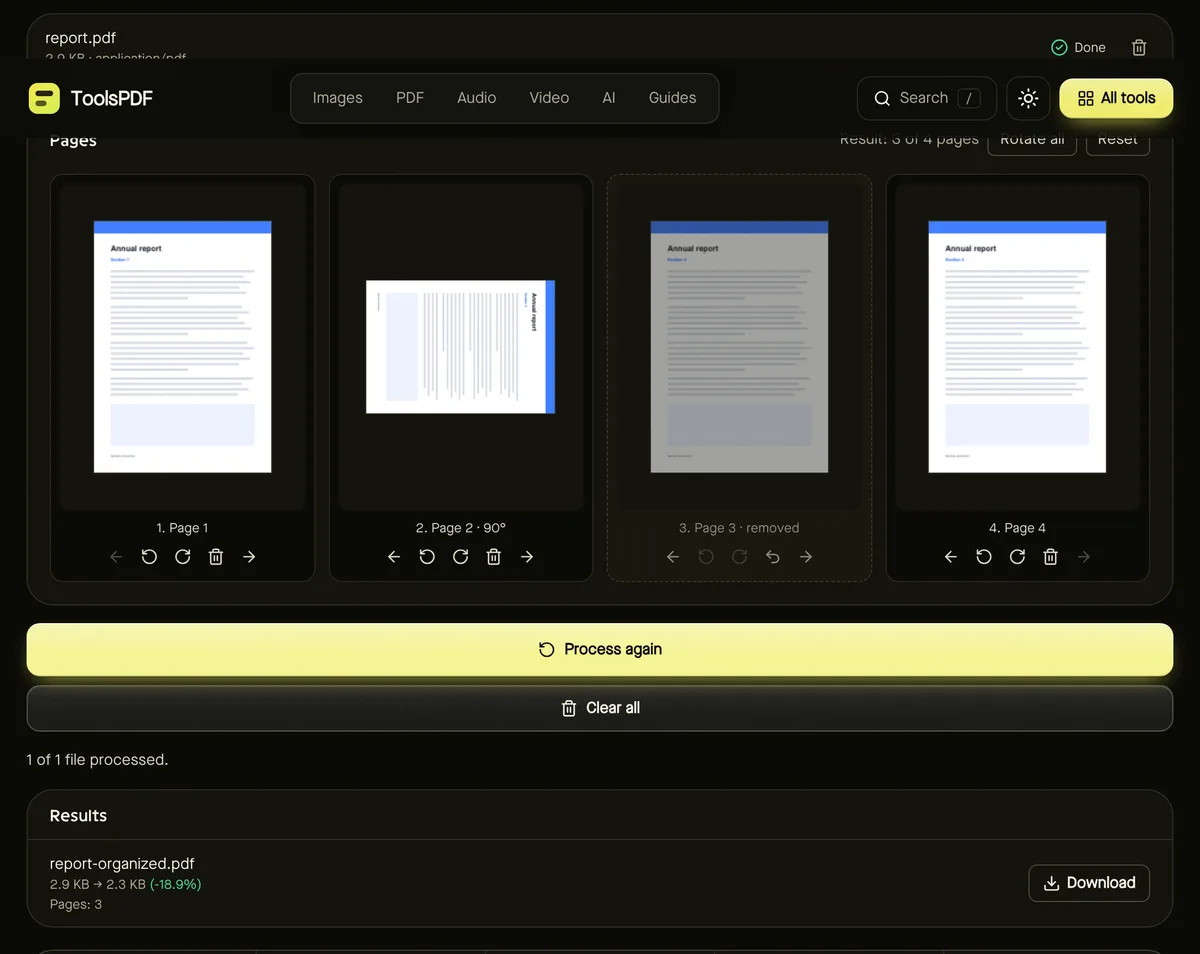
- Step 3: Use the arrow buttons to move a page earlier or later, the rotate buttons to turn it, and the bin button to remove it (you can restore it until you save).
- Step 4: Check the summary — for example “Result: 9 of 12 pages” — then click Start.
- Step 5: Download your reorganised PDF.
Does rotating affect quality?
No. PDF pages carry a rotation setting, and the tool changes that setting rather than re-drawing the content. Text stays sharp and selectable, and images aren't recompressed.
Common fixes
- Upside-down pages from a scanner: rotate those pages 180°.
- Landscape pages in a portrait document: rotate them 90° so they read correctly on screen.
- Blank pages from double-sided scanning: remove them.
- Pages in the wrong order: move them with the arrows; the number on each card shows its new position.
Related tools
To extract pages into separate files, use Split PDF. To add pages from another document, merge first and then organize. Finish with page numbers if the document needs them.
Tips for large documents
Every page gets a preview, so documents with hundreds of pages take a little longer to load, especially on phones. Previews appear as they're rendered, and you can start arranging pages straight away. Changes are only applied when you click Start, and the original file on your device is never modified — you download a new copy.
Frequently asked questions
Can I organize several PDFs at once?
This tool works on one PDF at a time, because the page arrangement belongs to that document. Merge files first if you need to combine and reorder them.
Can I undo a deleted page?
Yes, until you click Start — removed pages show a restore button, and Reset puts everything back.
Is my PDF uploaded?
No. The previews and the final PDF are created in your browser.