Last updated · 2 min read
How to flip a photo or create a mirror image
Front cameras often save selfies mirrored, so text on your T-shirt reads backwards. Designers flip product photos so they face into a layout. Whatever the reason, flipping is quick — this guide shows how, and explains when you actually want a rotation instead.
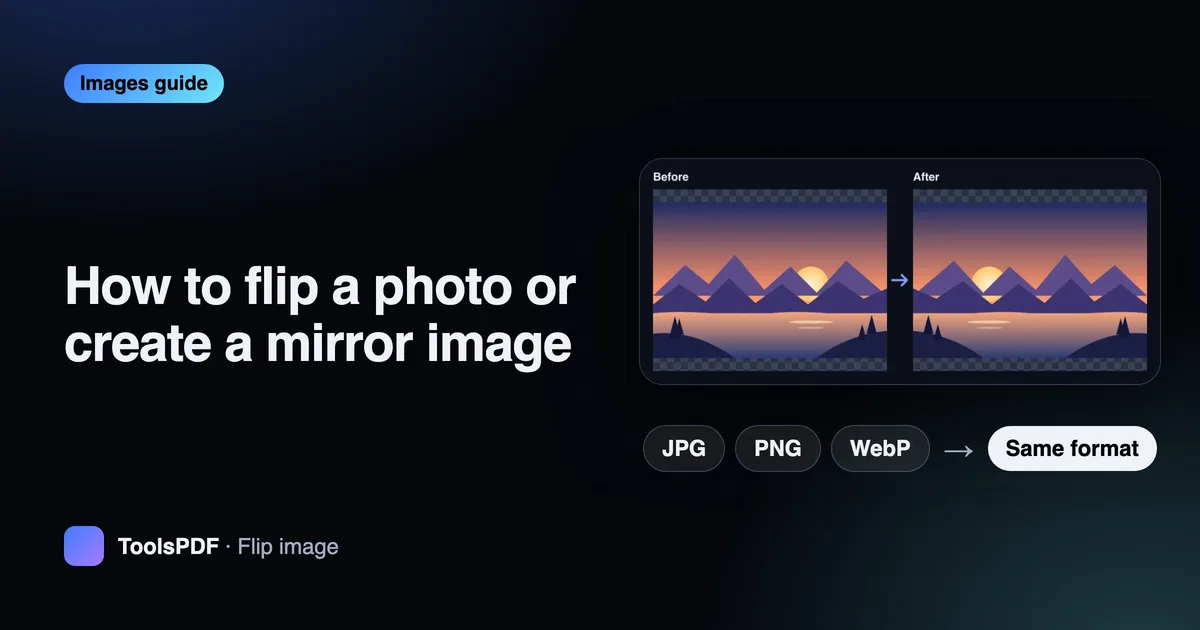
Flip a photo in seconds
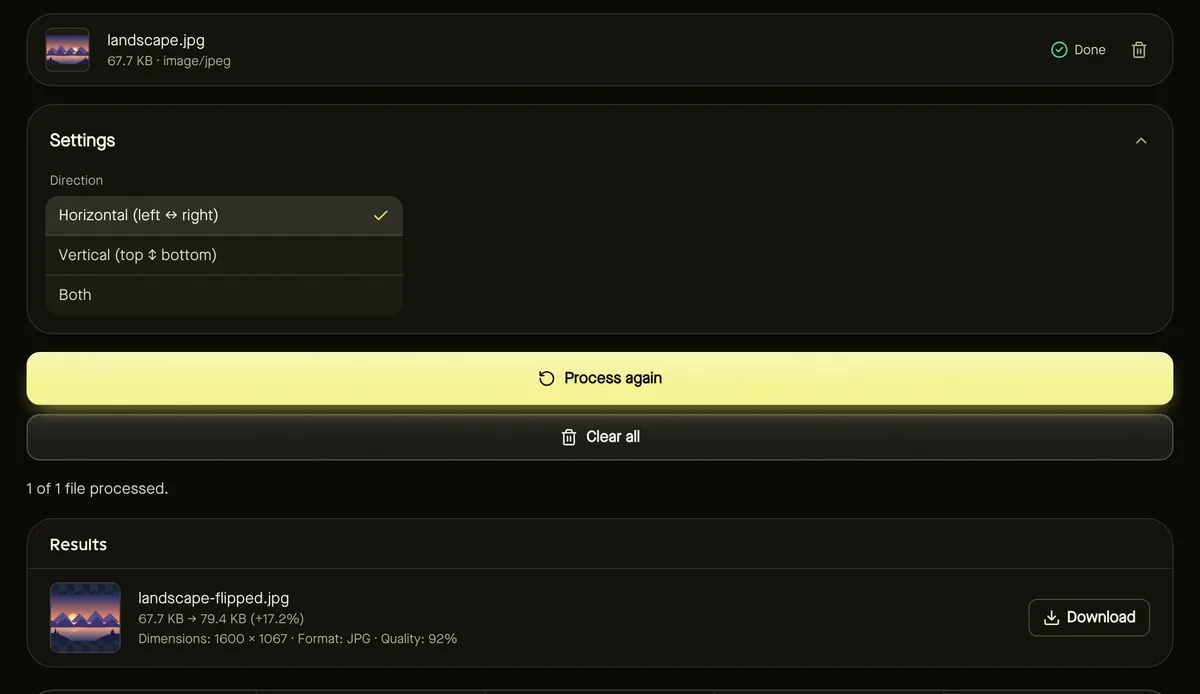
- Step 1: Open Flip image and add JPG, PNG or WebP files (up to 50).
- Step 2: Choose Horizontal (left ↔ right), Vertical (top ↕ bottom) or Both.
- Step 3: Click Start and download the mirrored images.
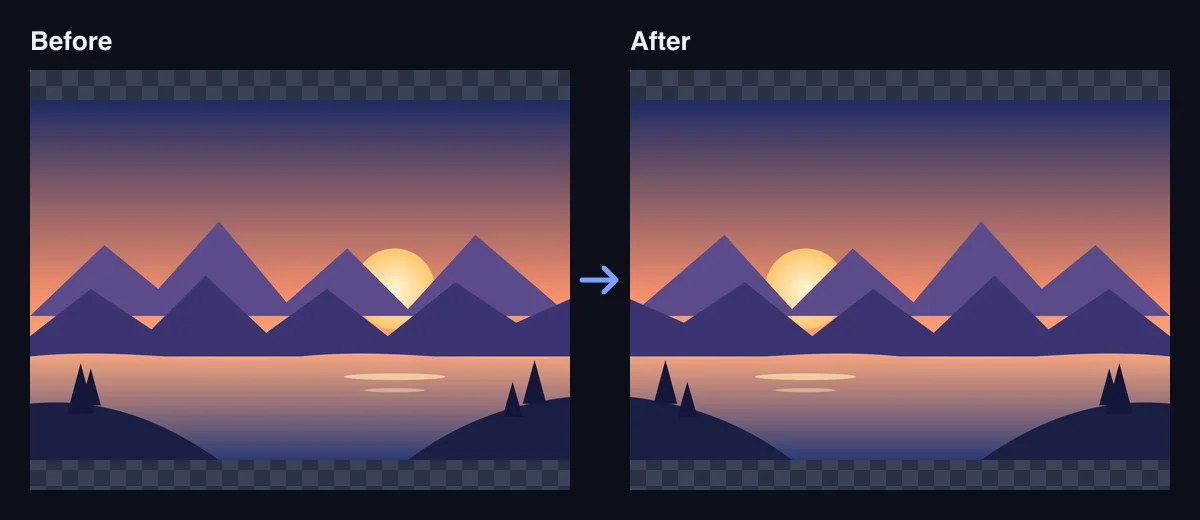
Horizontal, vertical or both?
| Option | Effect | Typical use |
|---|---|---|
| Horizontal | Mirror image, as in a mirror | Un-mirroring selfies, making a subject face the other way |
| Vertical | Upside-down reflection | Water-reflection effects, correcting reversed scans |
| Both | Same as a 180° rotation | Rarely needed — rotating is clearer |
Fixing mirrored selfies
Many phones show the front-camera preview as a mirror, because that's what people expect to see. Some also save the photo that way, others don't. If writing in your selfie reads backwards, a horizontal flip restores the real view. If faces look “wrong” after flipping, that's normal — we're used to seeing ourselves mirrored.
Quality and transparency
Flipping moves pixels without blending them, so nothing is blurred. PNG files stay lossless and keep transparency; JPG and WebP are saved again at high quality. Photos are first turned upright using their orientation tag, so the flip is applied to the picture as you see it.
Need to turn an image rather than mirror it? Use Rotate image — see why photos sometimes appear sideways.
Flipping many photos at once
Flip works on up to 50 images in one go, applying the same direction to each. That's useful when a whole set of product shots or scans needs the same correction: add them all, choose the direction once, and download everything as a ZIP. Each file keeps its own format and pixel size, so a batch of mixed JPG and PNG files comes back exactly as mixed.
Frequently asked questions
Is flipping the same as rotating 180°?
Only when you flip both horizontally and vertically. A single flip mirrors the image, which a rotation can't do.
Can I flip many photos at once?
Yes, up to 50, and download them together as a ZIP.
Are my photos uploaded?
No, flipping happens entirely in your browser.