Last updated · 2 min read
How to rotate an image (and why photos sometimes appear sideways)
A photo that looks fine on your phone appears sideways after you upload it. It's one of the most common image problems, and it has a simple cause. This guide explains it, then shows how to rotate one image or a whole batch so they display correctly everywhere.
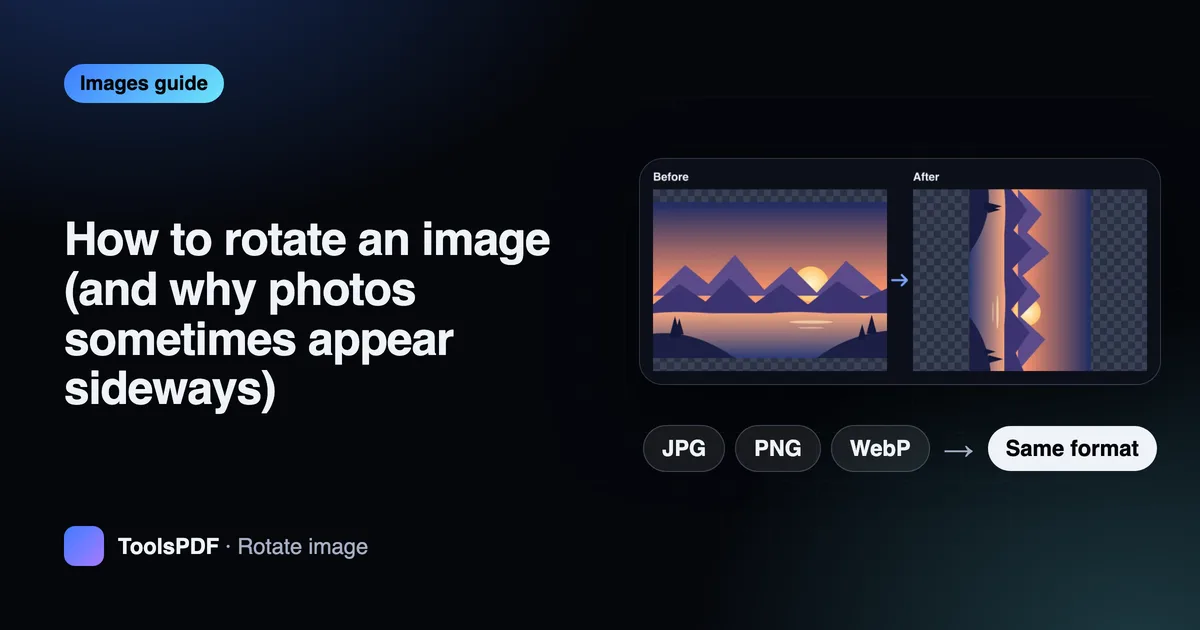
Why photos appear sideways
Cameras usually store pixels the same way no matter how you hold the phone, then add a small orientation tag saying “rotate this 90° when displaying”. Your phone's gallery reads the tag; some websites, older apps and printing services don't, so the photo appears on its side.
The permanent fix is to rotate the actual pixels and remove the tag. Every tool on this site does that automatically: photos are turned upright first, and the saved file no longer depends on the tag.

Rotate images step by step
- Step 1: Open Rotate image.
- Step 2: Add one or more JPG, PNG or WebP files — up to 50 at a time.
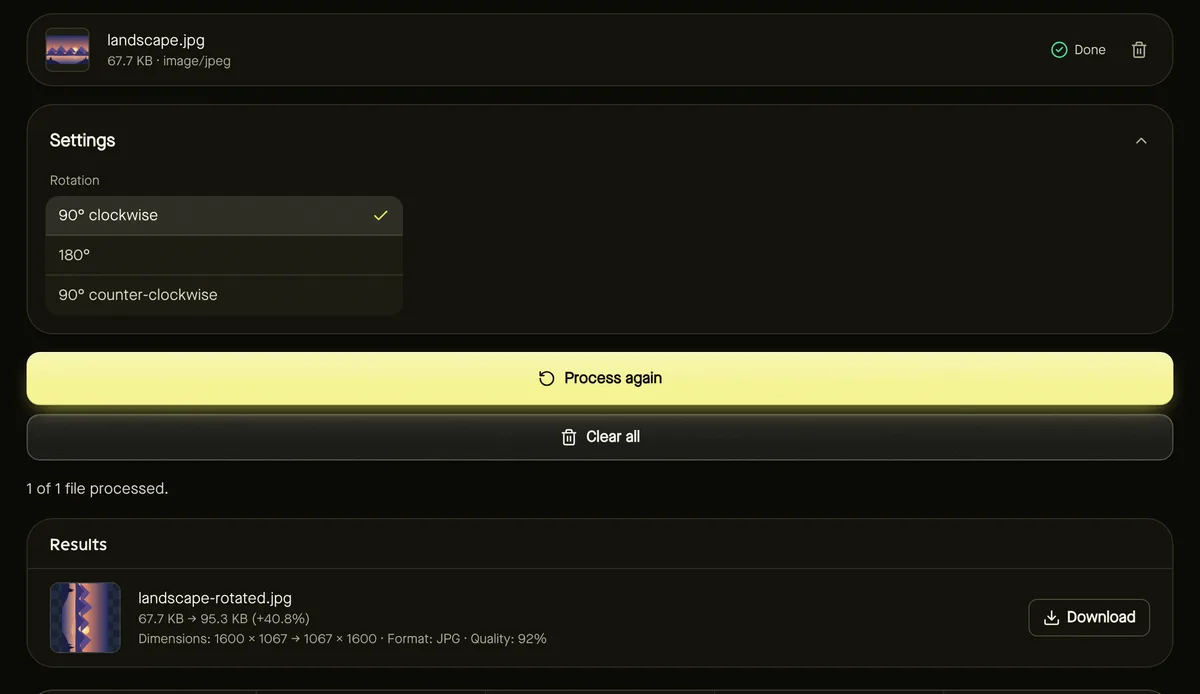
- Step 3: Choose 90° clockwise, 180° or 90° counter-clockwise.
- Step 4: Click Start, then download files individually or as a ZIP.
Does rotating reduce quality?
Rotating in 90° steps moves pixels without blending them, so nothing is blurred or cropped. PNG files stay exactly lossless. JPG and WebP are saved again at high quality (92%), which isn't visible in normal use; if you rotate the same JPG many times over, start from the original each time.
Rotate vs flip vs straighten
- Rotate turns the whole picture: what was on the left ends up at the top or bottom.
- Flip mirrors the picture, swapping left and right (or top and bottom). Use Flip image for mirrored selfies or scanned documents that came out reversed.
- Straightening a slightly tilted horizon needs a small-angle rotation plus a crop, which this tool doesn't do; rotation here is in exact 90° steps.
Frequently asked questions
Will rotating change the image dimensions?
A 90° turn swaps width and height — a 4000 × 3000 photo becomes 3000 × 4000. A 180° turn keeps them the same.
Can I rotate a PDF instead?
Yes — use Organize PDF pages, which rotates individual pages without re-encoding their content.
Is anything uploaded?
No. Rotation happens in your browser.