Last updated · 2 min read
How to upscale a small image with AI (2× or 4×)
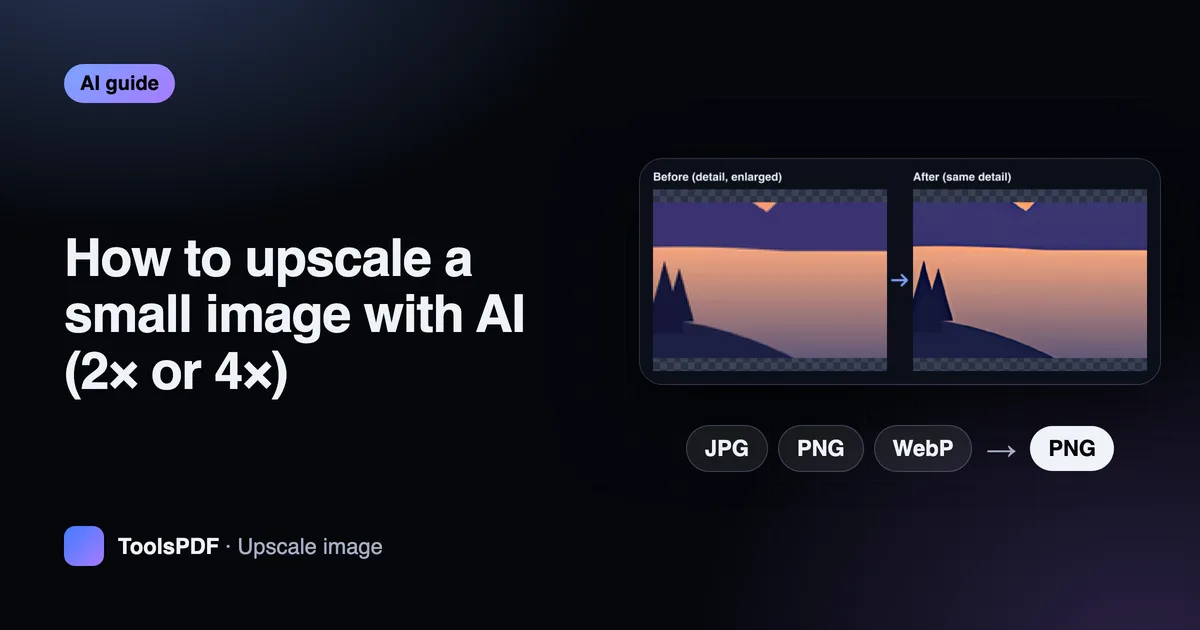
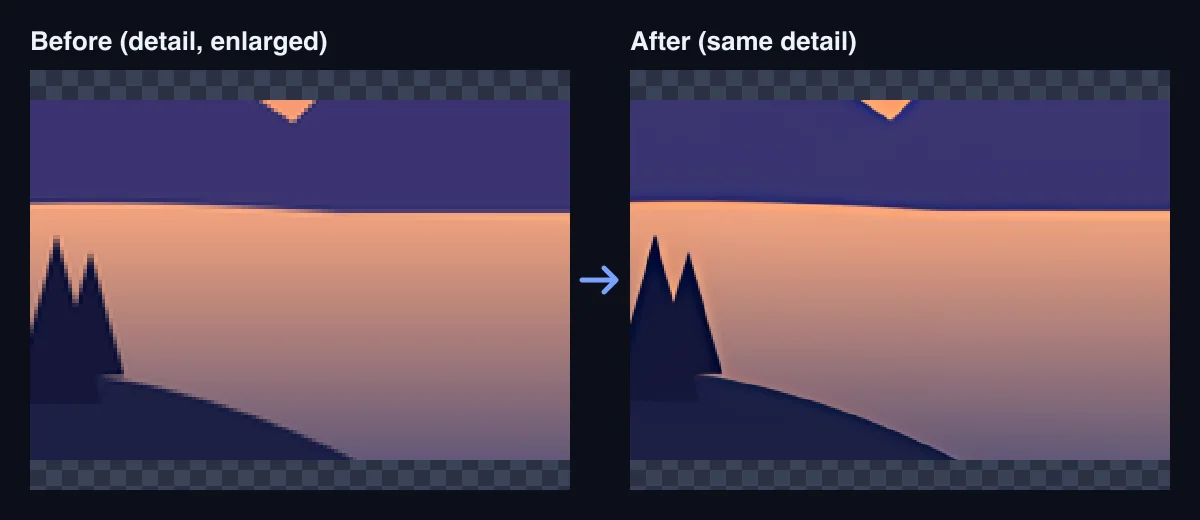
Ordinary resizing makes a small image bigger by spreading its pixels out, which looks soft and blurry. AI upscaling instead predicts sharper edges and textures, so small logos, old photos and thumbnails can be enlarged far more convincingly.
Upscale an image step by step
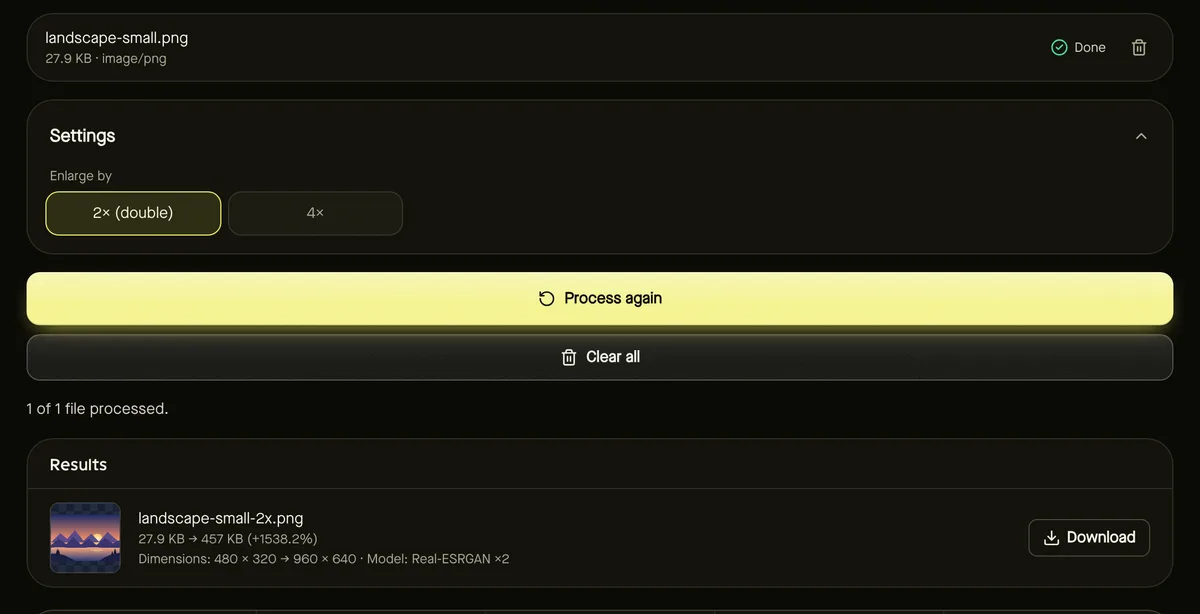
- Step 1: Open Upscale image and add a JPG, PNG or WebP image up to about 1024 × 1024 pixels.
- Step 2: Choose Enlarge by: 2× or 4×.
- Step 3: Click Start. The model (about 5 MB) downloads from this site the first time.
- Step 4: Progress shows as the image is processed in tiles; download the PNG when it's done.
What AI upscaling can and can't do
The tool uses Real-ESRGAN, a super-resolution model trained to sharpen edges and reduce blur and compression noise while enlarging. It's very good at making text, outlines and textures look crisp at a larger size.
It can't recover details that were never in the image: a face that's a few pixels across won't become a recognisable portrait, and the model may invent plausible-looking texture. Treat results as enhanced, not as the original truth — especially for evidence or documents.
Best inputs
- Small but reasonably clear images: icons, logos, product thumbnails, old web images.
- Images with JPEG blockiness — the model smooths compression artefacts.
- Start from the cleanest copy you have, not a screenshot of a screenshot.
Speed and transparency
Upscaling runs on your device's processor, so it takes from a few seconds for small images to about a minute for the largest. Transparency is kept: the alpha channel is enlarged separately and recombined, so logos stay cut out.
Upscaling for printing
Printers need roughly 300 pixels per inch for sharp results. A 500-pixel-wide image prints sharply at under 2 inches wide; upscaled 4× to 2000 pixels, it can print at about 6–7 inches. Upscaling makes the print look smoother, but it can't add true detail, so for large prints start from the biggest original you can find.
Frequently asked questions
Should I choose 2× or 4×?
Use 2× when you need a moderate increase, such as doubling a web image for high-density screens. Use 4× for very small images; it takes longer and makes larger files.
Is upscaling better than resizing?
For enlarging, yes. For making images smaller, use ordinary resizing.
Is my image uploaded?
No. The model runs in your browser.