Last updated · 2 min read
How to make a meme with classic top and bottom text
The classic meme format — bold white text with a black outline at the top and bottom of a picture — is instantly recognisable and readable on any background. Making one takes seconds; making it land is mostly about short, punchy text.
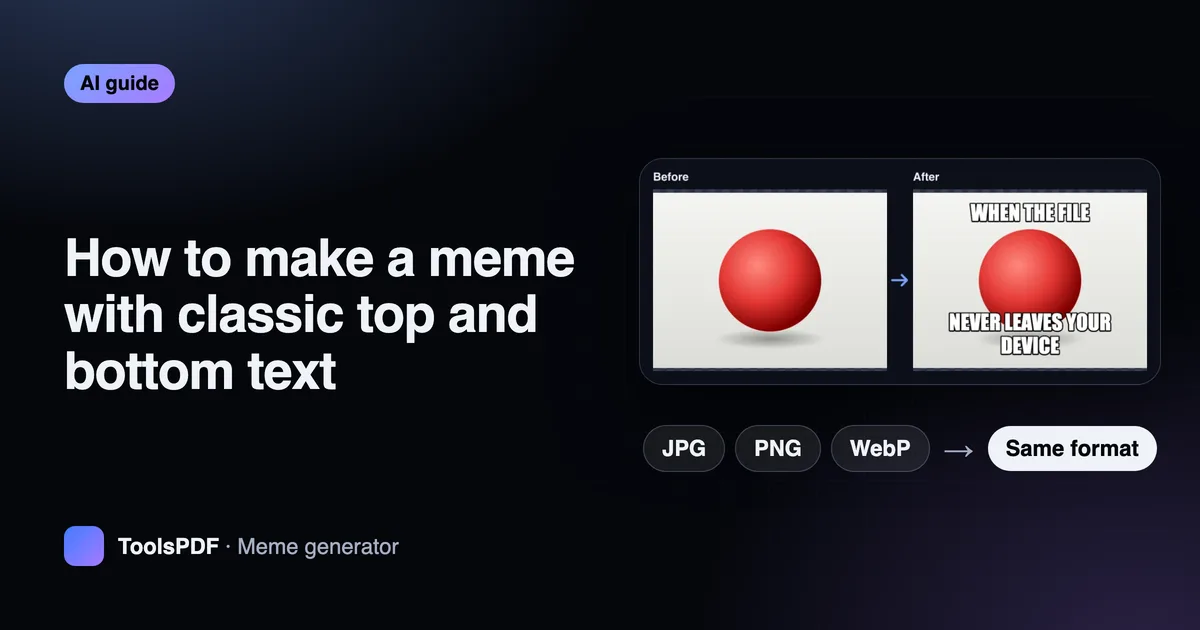
Make a meme step by step
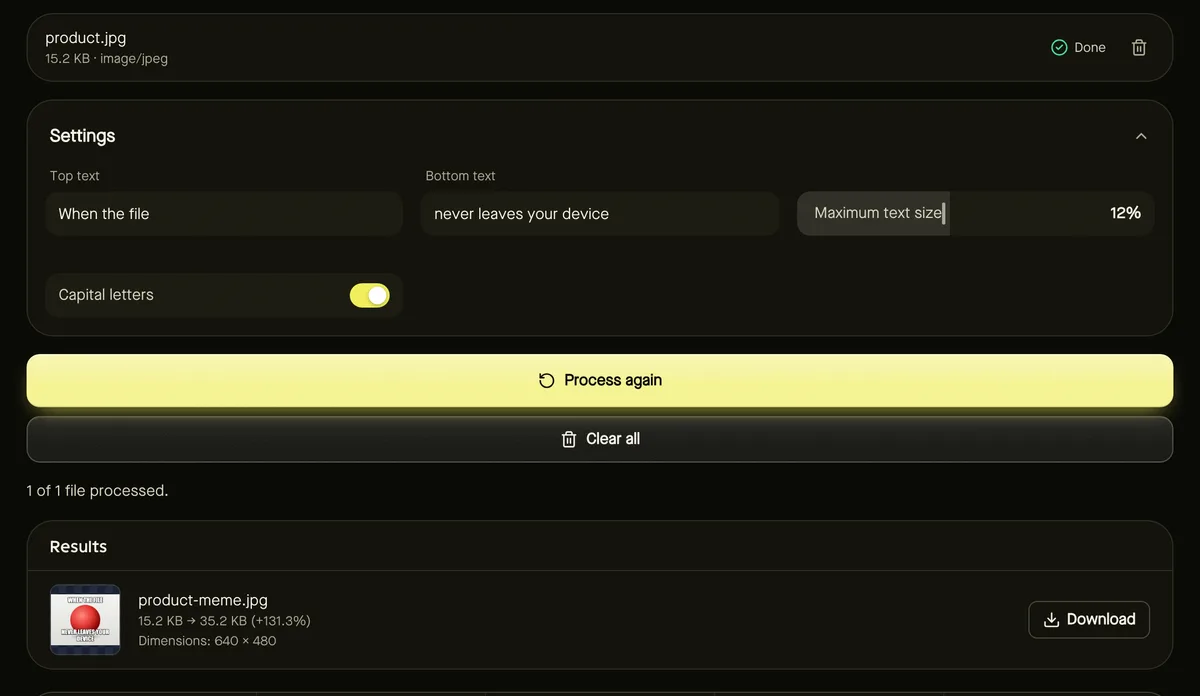
- Step 1: Open the Meme generator and add a JPG, PNG or WebP image.
- Step 2: Type your Top text, Bottom text, or both.
- Step 3: Adjust Maximum text size and choose whether to use capital letters.
- Step 4: Click Start and download your meme in the same format as the original image.
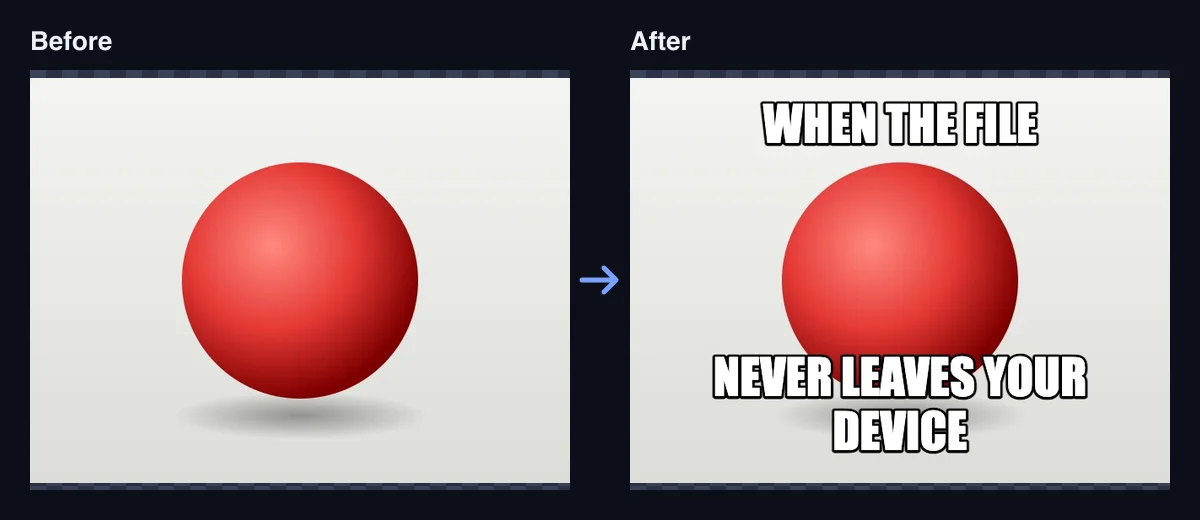
Writing captions that work
- Keep each line short: the setup at the top, the punchline at the bottom.
- Capital letters are traditional and easier to read at small sizes.
- Leave the middle of the image clear for the subject — that's where faces and action usually are.
Long captions wrap onto up to three lines and shrink to fit the width, so text never runs off the edge.
The look
Text is drawn in white with a thick black outline, so it stays readable on light and dark images alike. The font is a bold display face from your device — Impact where available, otherwise a similar heavy sans-serif — so the exact look can vary slightly between devices.
Respect the source
Use images you own or have permission to use, and avoid captions that target real private individuals. A great meme is about the joke, not about someone's expense.
Making memes in batches
You can add up to 10 images at once, and the same top and bottom text is placed on each. That's handy for testing one caption on several pictures, or adding the same label to a set of images. Text size adapts to each image, so wide and tall pictures both get readable captions.
Frequently asked questions
Can I add only bottom text?
Yes. Fill in either line or both; at least one is needed.
Will my image be resized?
No. The meme keeps the original image size and format.
Is my image uploaded?
No. Captions are added in your browser.