Last updated · 2 min read
How to make a before-and-after photo comparison
A before-and-after image tells a story in one glance — a renovated room, a restored car, a cleaned-up garden or an edited photo. The trick is making the two pictures match so the change is the only thing viewers notice.
Shoot for comparison
- Take both photos from the same spot, height and angle — mark the spot if you'll return later.
- Use similar light: same time of day, or the same lamps.
- Keep the same zoom and orientation (both portrait or both landscape).

Make the two photos match
Even with care, framing drifts. Use Crop image on each photo with the same aspect-ratio preset — such as 4:5 or 1:1 — and frame the subject at the same size in both. If one photo is sideways, rotate it first.
Combine them side by side
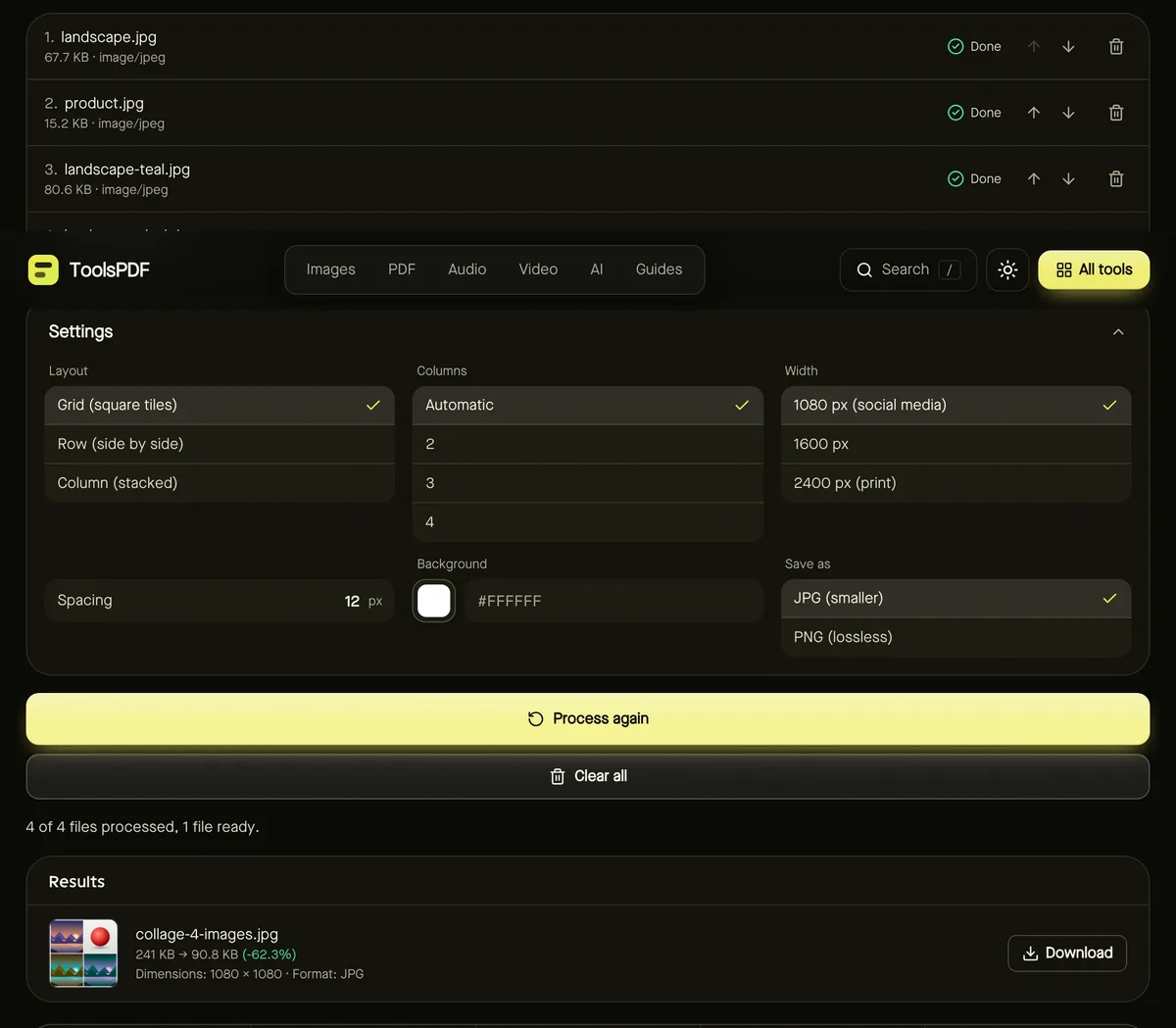
- Step 1: Open the Collage maker and add both photos.
- Step 2: Put the before photo first so it appears on the left.
- Step 3: Choose Row layout: both photos are shown at the same height, uncropped.
- Step 4: Set spacing (8–16 px) and a background colour for a neat divider.
- Step 5: Click Start and download.
Add labels
Run the finished comparison through the Meme generator with top text such as “BEFORE → AFTER”, or a caption describing the change. Keep it short so the photos do the talking.
Keep it honest
Comparisons are persuasive because people trust them. Don't change lighting, filters or angles to exaggerate results, especially for products, fitness or medical results, and only share photos of people with their permission.
Frequently asked questions
My two photos are different sizes — is that a problem?
No. In Row layout both are scaled to the same height, and in Column layout to the same width, so nothing is distorted. Cropping both to the same aspect ratio first just makes them line up neatly.
Can I compare more than two photos?
Yes — add up to 12 for a progress sequence, in a row, column or grid.
Which format should I save?
JPG for photos and smallest files; PNG if the image contains sharp text or graphics.
Are my photos uploaded?
No. The comparison is created in your browser.