Last updated · 2 min read
How to crop a photo to 1:1, 4:5, 16:9 or any aspect ratio
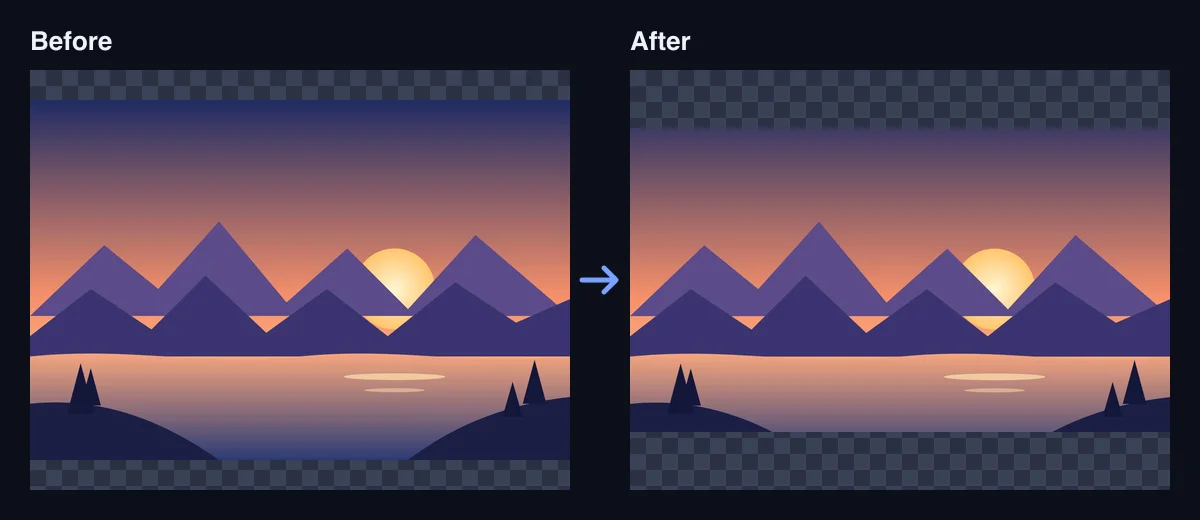
Cropping does two jobs: it improves composition by removing distractions, and it reshapes a photo to the frame a platform expects. Knowing which aspect ratio to use — and cropping before you resize — saves you from awkwardly cut-off heads and stretched pictures.
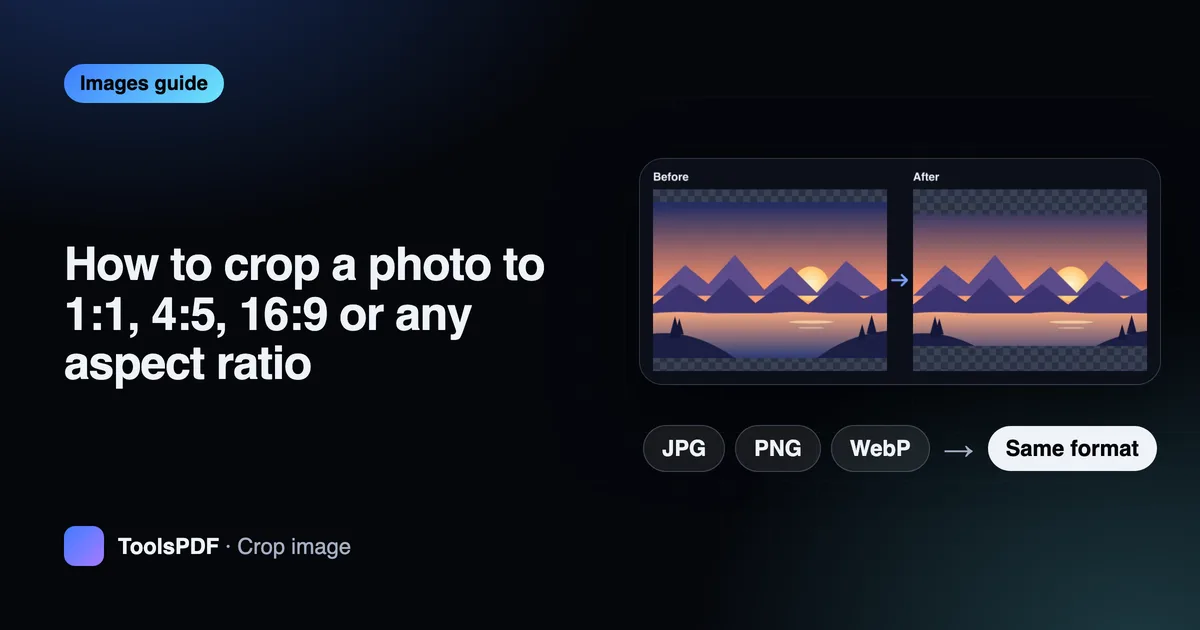
Aspect ratios in plain English
An aspect ratio is the shape of an image: width compared with height. 1:1 is a square, 16:9 is the wide shape of a TV, and 4:5 is slightly taller than wide. The ratio says nothing about size — a 1:1 image can be 300 or 3000 pixels across.
| Ratio | Shape | Commonly used for |
|---|---|---|
| 1:1 | Square | Profile pictures, product tiles, many social posts |
| 4:5 | Portrait | Portrait posts in social feeds |
| 16:9 | Widescreen | Video thumbnails, banners, presentations |
| 9:16 | Tall | Stories, reels and phone wallpapers |
| 3:2 / 4:3 | Classic photo | Prints and camera-native framing |
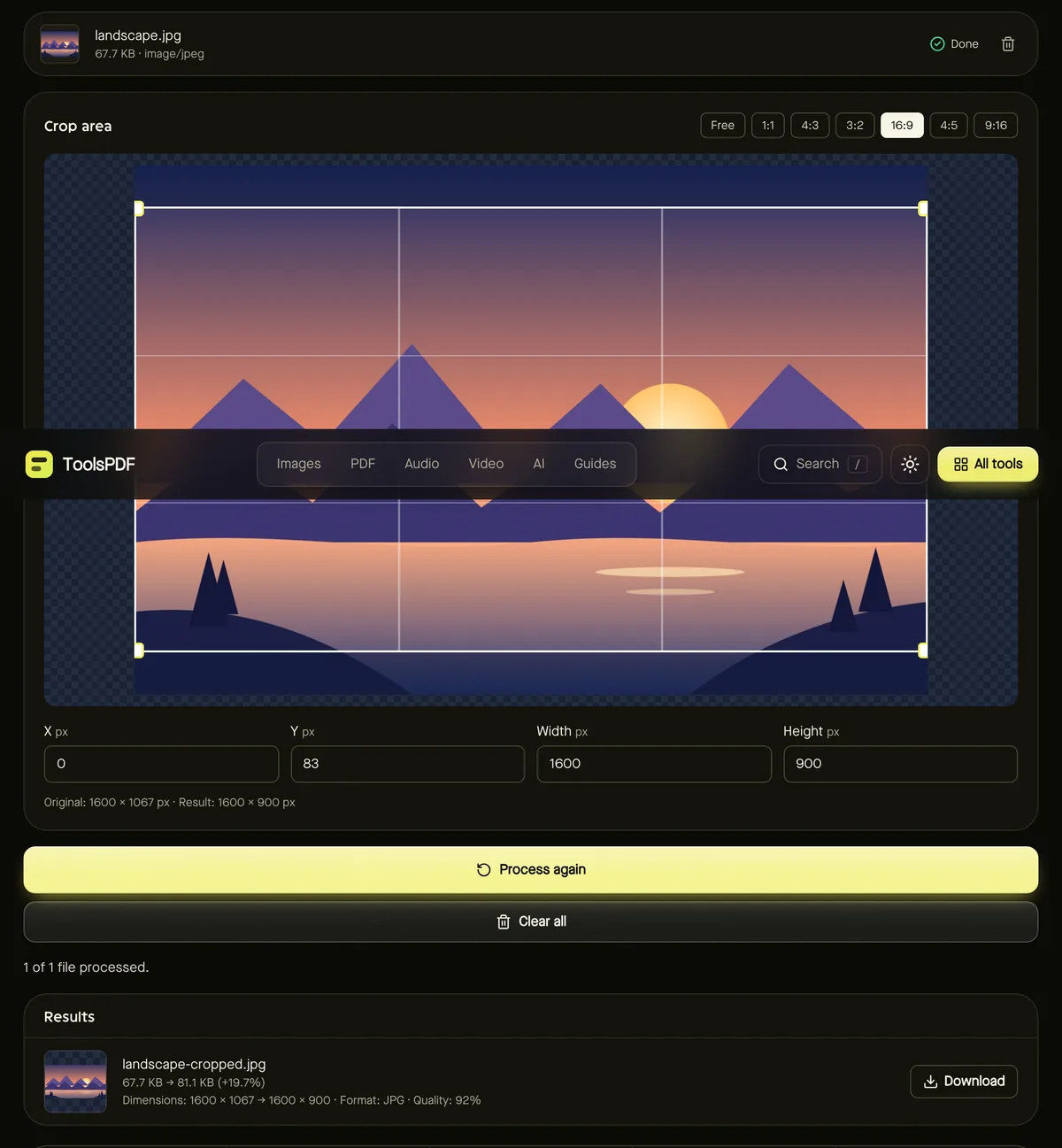
Crop with a live preview
- Step 1: Open Crop image and add a JPG, PNG or WebP photo.
- Step 2: Pick a preset such as 1:1 or 16:9, or Free for any shape.
- Step 3: Drag the selection to move it; drag a corner to resize it. The ratio stays locked when a preset is chosen.
- Step 4: For precision, type exact X, Y, Width and Height values in pixels, or select the crop box and nudge it with the arrow keys (hold Shift for 10-pixel steps).
- Step 5: Click Start and download your cropped image.
Composition tips
- Use the thirds guides in the crop box: placing eyes or the horizon on a guide line usually looks more natural than dead centre.
- Leave a little space in the direction a person is looking or a subject is moving.
- For profile pictures, crop slightly wider than you think — many platforms display them in a circle that trims the corners.
- Crop first, then resize to the final pixel size. Resizing first throws away pixels you might want to keep.
Quality and transparency
Cropping keeps the original pixels in the area you select — it doesn't stretch or resample anything. PNG files stay lossless and keep their transparency. JPG and WebP files are saved again at high quality (92%), which is visually indistinguishable for almost all photos.
Frequently asked questions
Can I crop several photos at once?
The crop tool works on one photo at a time so you can frame each one. For identical crops across a batch, use the bulk resizer with “Exact size (crop to fill)”.
Does cropping reduce file size?
Yes, usually — fewer pixels means a smaller file. For even smaller files, compress afterwards.
Is my photo uploaded?
No. Cropping happens in your browser.