Last updated · 2 min read
How to convert audio to MP3 (and extract audio from video)
MP3 still plays on almost everything, which makes it the safe choice for sharing. This guide shows how to convert audio between the common formats, pick a sensible bitrate, and extract the soundtrack from a video — all in your browser.
Convert audio step by step
- Step 1: Open the Audio converter.
- Step 2: Add audio files (MP3, WAV, M4A, AAC, OGG, FLAC) or videos (MP4, MOV, WebM, MKV) — up to 20 at once.
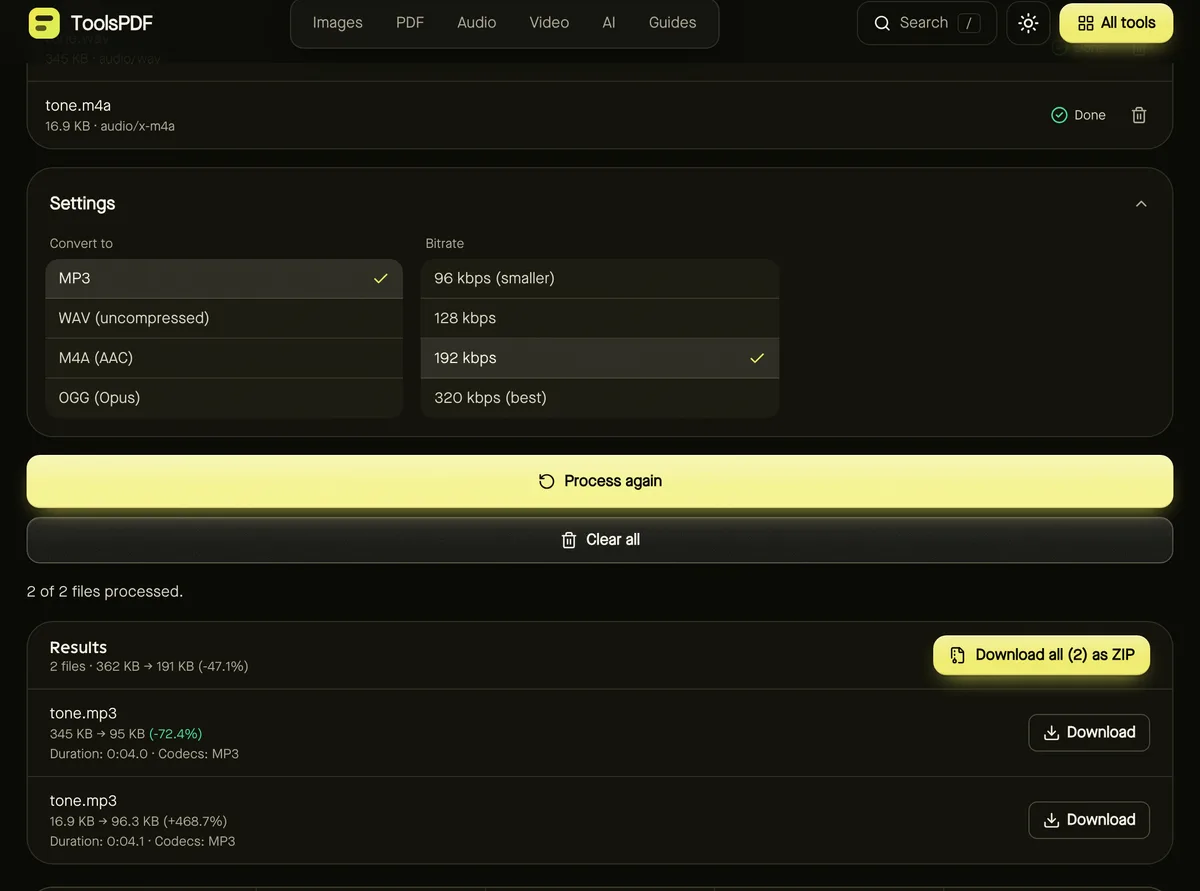
- Step 3: Choose Convert to: MP3, WAV, M4A (AAC) or OGG (Opus).
- Step 4: Pick a Bitrate for compressed formats.
- Step 5: Click Start and download the converted files.
Which format and bitrate?
| Format | Best for | Notes |
|---|---|---|
| MP3 | Sharing, older devices and cars | Plays almost everywhere |
| M4A (AAC) | Apple devices, good quality per byte | Not available in every browser — see below |
| OGG (Opus) | Speech and web use | Excellent quality at low bitrates |
| WAV | Editing and archiving | Uncompressed; large files |
- 96 kbps: speech, podcasts and voice notes.
- 128–192 kbps: everyday music listening.
- 320 kbps: the highest MP3 quality, for music you care about.
Extract audio from a video
Add an MP4, MOV or WebM video and choose an audio format: the soundtrack is extracted and the video is discarded. This is perfect for saving the audio of a recorded talk, lecture or interview.
Browser support
MP3 and WAV work in every current browser. M4A (AAC) and OGG (Opus) use your browser's built-in encoders: for example, Firefox can't currently create AAC. If a format isn't available, you'll see a clear message — choose MP3 or try another browser.
Converting many files at once
Add up to 20 files and they're converted one after another with the same format and bitrate. Each file shows its own progress and result, and you can download them individually or together as a ZIP. If one file can't be read, it's reported by name while the others still convert.
Frequently asked questions
Does converting to MP3 reduce quality?
MP3 is lossy, so some detail is discarded. At 192 kbps or above, most people can't hear a difference for everyday listening.
Can I trim the audio while converting?
Use the Audio cutter first or afterwards; the converter processes whole files.
Are my files uploaded?
No. Conversion uses your browser's built-in audio tools and stays on your device.