Last updated · 2 min read
How to add page numbers to a PDF
Page numbers make long documents easier to discuss, print and reference — especially after merging several files into one. You can add them to any PDF in a few clicks, in the position and style you prefer.
Add page numbers step by step
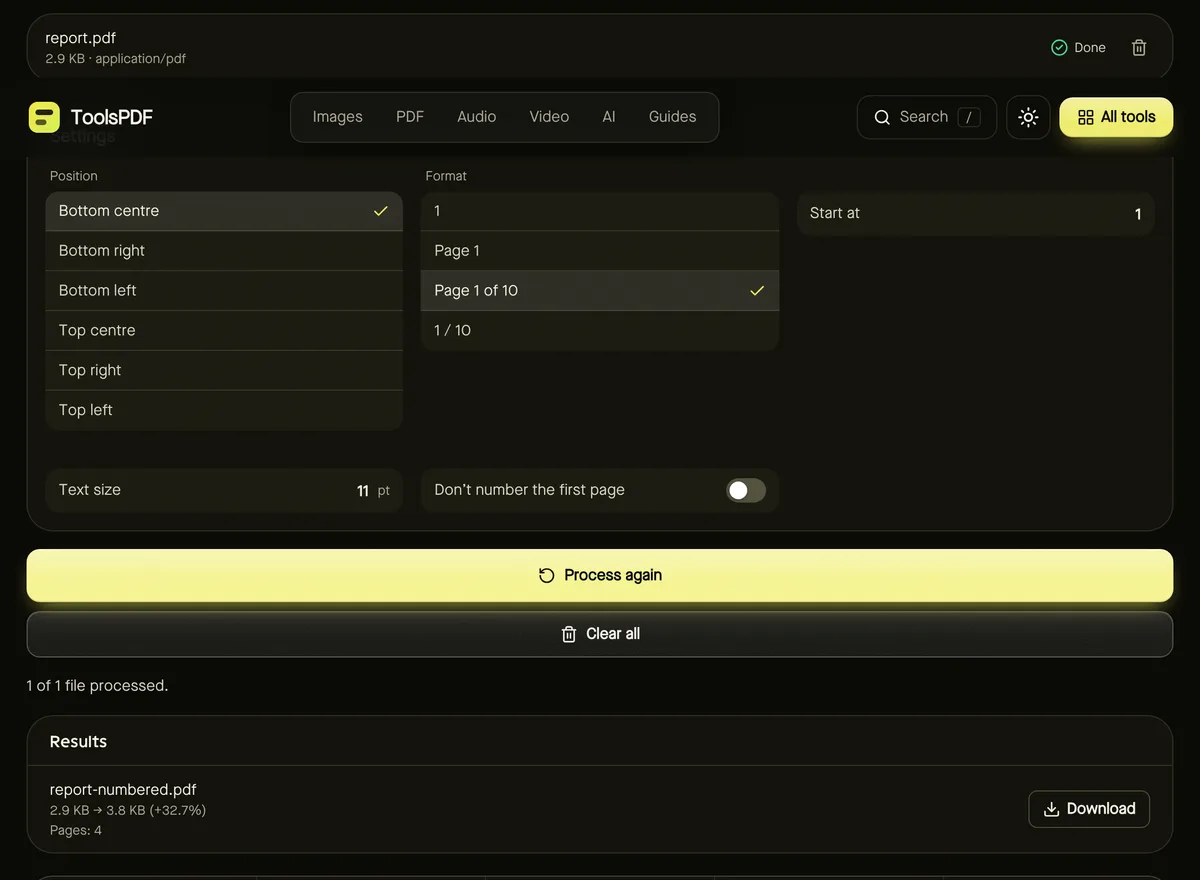
- Step 1: Open Add page numbers and add your PDF.
- Step 2: Choose the Position: top or bottom, left, centre or right.
- Step 3: Choose a Format: 1, Page 1, Page 1 of 10, or 1 / 10.
- Step 4: Set Start at and Text size, and decide whether to skip the first page.
- Step 5: Click Start and download the numbered PDF.
Choosing a style
| Format | Looks like | Good for |
|---|---|---|
| 1 | 7 | Books, minimal layouts |
| Page 1 | Page 7 | Reports and handouts |
| Page 1 of 10 | Page 7 of 24 | Contracts and forms — shows nothing is missing |
| 1 / 10 | 7 / 24 | Compact slides and presentations |
Cover pages and custom starts
Turn on Don't number the first page for a title page; numbering then starts on page two with your chosen start number, and totals count only the numbered pages. Use Start at when a document continues from another — for example, an appendix that starts at page 41.
Rotated pages
Numbers are placed relative to how each page is displayed, so they appear upright in the chosen corner even on pages that are rotated.
Where to put the numbers
- Bottom centre: the most common choice for reports, essays and manuals.
- Bottom right: easy to find when flicking through printed pages.
- Top right: traditional for legal and academic documents in some places — check your style guide.
Whatever you choose, use the same position across related documents so they look consistent. Several PDFs can be numbered at once with the same settings; each one is numbered on its own, starting from your chosen number.
Frequently asked questions
Will the numbers cover my content?
They're placed in the margin about 1 cm from the edge. If a document uses very small margins, try a smaller text size or a different corner.
Can I remove the numbers later?
They're added as text on each page; keep your original file if you might need an unnumbered version.
Is my PDF uploaded?
No. Numbering happens in your browser.