Last updated · 2 min read
How to convert JPG and PNG to WebP for a faster website
Images are often the heaviest part of a web page, and page speed affects both visitors and search rankings. Switching to WebP is one of the simplest wins: files are typically smaller than JPG for photos and much smaller than PNG for graphics, and every current browser supports it.
Why WebP helps
WebP uses more modern compression than JPG and PNG. For photos it usually beats JPG at similar visual quality; for graphics with transparency it is often far smaller than PNG. Smaller images download faster, which matters most on mobile connections.
Convert to WebP
- Step 1: Open Convert to WebP.
- Step 2: Add JPG or PNG files — up to 50 at a time.
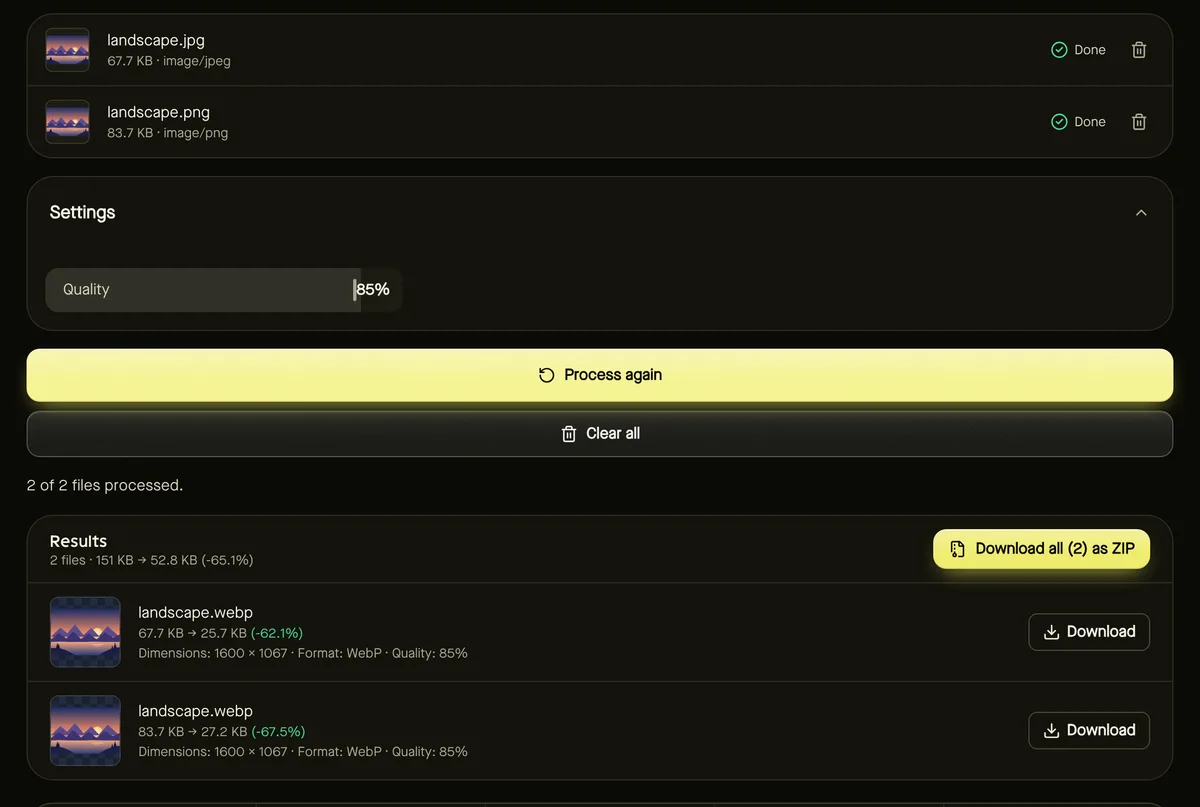
- Step 3: Set Quality. 80–85% suits most photos; graphics can often go lower.
- Step 4: Click Start and check the size savings in the results.
- Step 5: Download individual files or a ZIP and upload them to your site.
Transparency is kept
PNG transparency carries over to WebP, so logos and cut-outs keep their clean edges on any background. This is one of WebP's biggest advantages over JPG.
Browser support for creating WebP
All current browsers can display WebP. Creating WebP files is a different matter: Chrome, Edge and Firefox can encode WebP, but some versions of Safari can't. If your browser can't, the tool shows a clear message rather than handing you a file in the wrong format — just switch browser for this step.
A simple workflow for site images
Frequently asked questions
Do all browsers show WebP images?
Yes — all current major browsers display WebP. Very old browsers may not, which is why some sites also keep a JPG fallback.
Should I convert screenshots to WebP?
Often yes: lossy WebP at high quality handles text reasonably well and is much smaller than PNG. Check the result at 100% zoom.
Are my images uploaded?
No. Conversion runs in your browser.